

1 · Setup
Sentari is an editor panel you talk to. It reads your scene, your assets and your viewport, then acts — building Blueprint graphs, authoring materials, scattering PCG, driving Gameplay Ability System data, generating 3D and audio — by calling verified tools against the engine's real API. UE 5.7 and 5.8, fully offline on a local model or on your own cloud key.
- Enable Sentari AI Assistant in and restart.
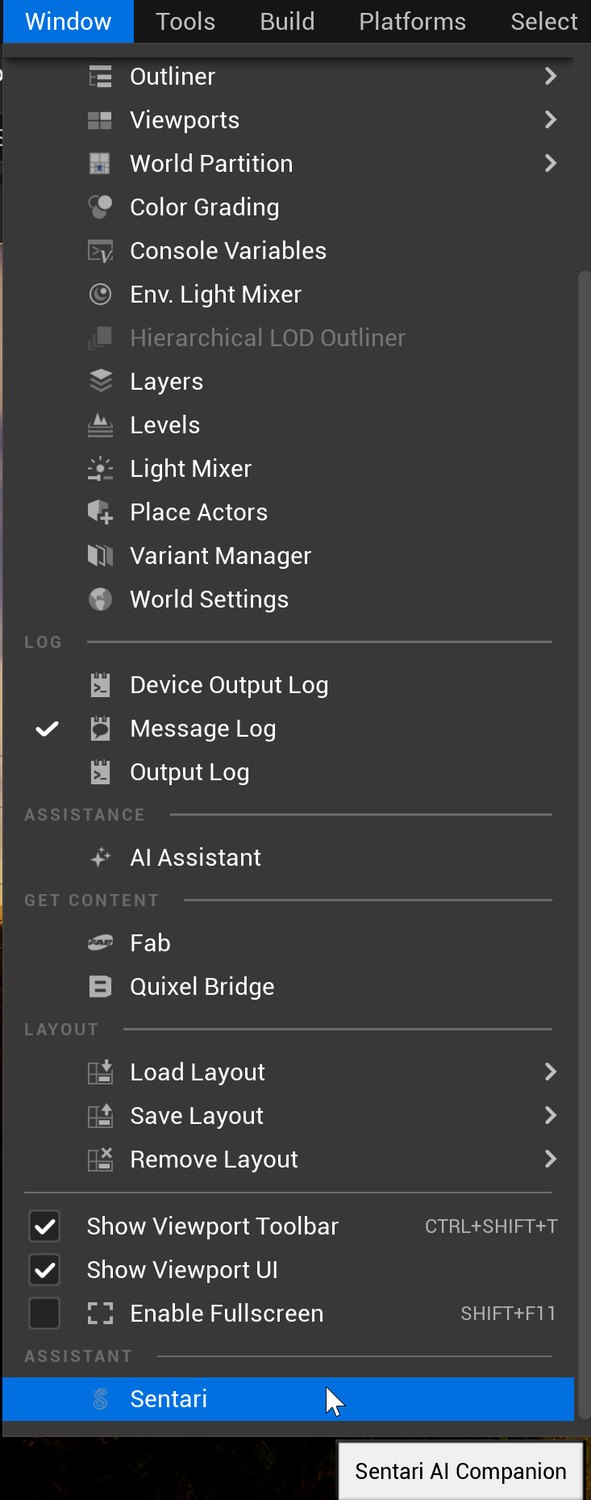
- Open it from the toolbar button, or — it sits under Assistant, near the bottom of the menu.
- Point it at a model (§2). The MCP bridge is already listening on
:8765. - Type and press Enter.

What actually gets installed
Nothing, beyond the plugin itself. This is the question that comes up most, so it is worth answering flatly: you do not need Python on your machine. Unreal ships its own embedded Python 3 interpreter, and Sentari runs inside it through the engine's stock PythonScriptPlugin, which the plugin manifest enables for you.
- No pip, no packages, no virtualenv. The plugin's entire Python layer runs on the standard library plus Unreal's own
unrealmodule. Even the HTTP calls to your model go throughurllib— there is norequirements.txtto install and nothing to keep updated. - If you already have Python, it is simply unused. Your system install and Unreal's embedded one do not interact.
Enabling Sentari also switches on four other stock engine plugins it depends on — PythonScriptPlugin, WebBrowserWidget, Niagara, EnhancedInput and GameplayAbilities. All ship with Unreal; none are downloads. If any of them were disabled in your project, Unreal will ask to enable them and restart, which is the one and only restart in the whole setup.
The one thing that can interfere. A global PYTHONHOME or PYTHONPATH environment variable pointing at another Python install — Unreal's embedded interpreter can pick it up and get confused. If you have one set system-wide and the panel misbehaves on a clean install, that is the first thing to clear.
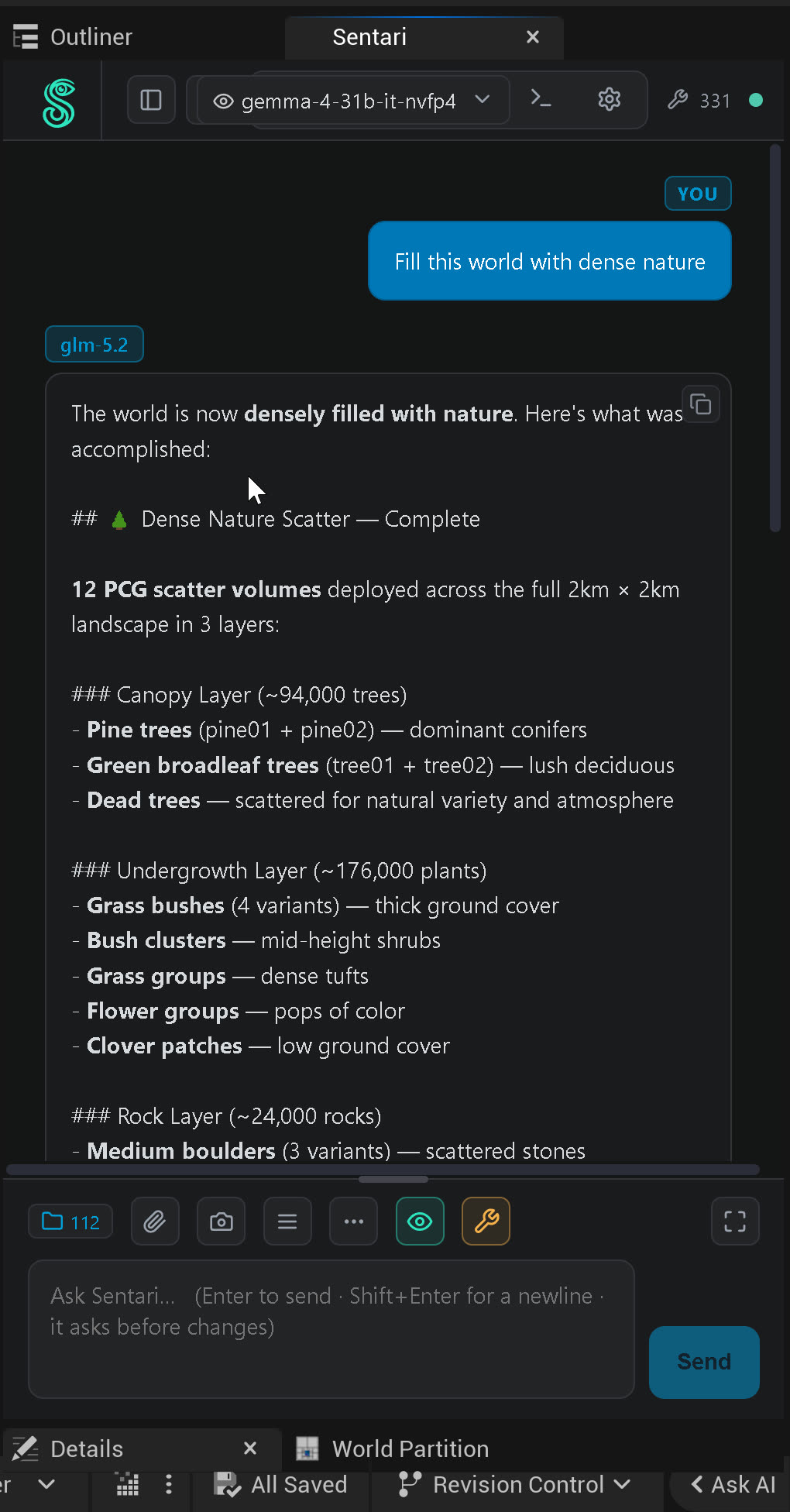
The panel is an ordinary editor tab — drag it anywhere, including straight into the Outliner stack. It does not need to be wide to be useful.
2 · Connecting a model
Sentari supplies the tools; the model supplies the judgement. Which model is entirely your call — and the choice is not permanent, so it is worth understanding what actually changes when you switch.
Backends
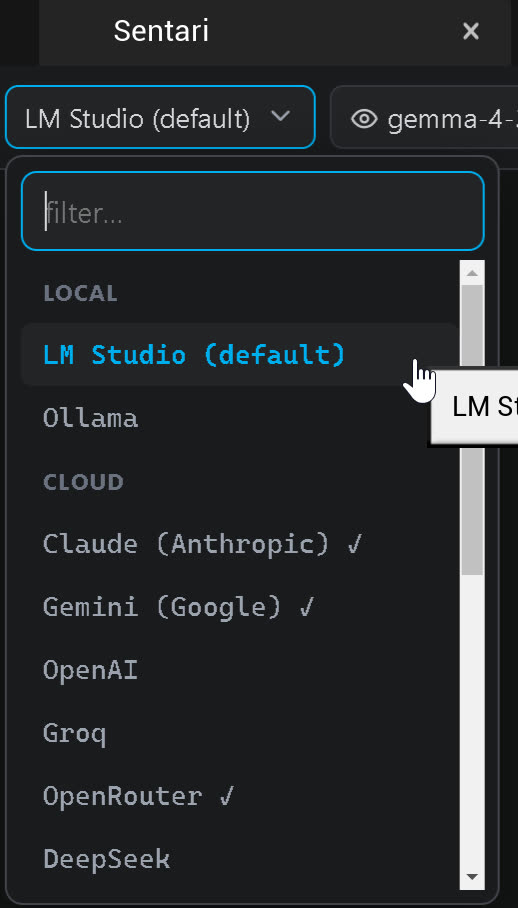
The backend dropdown splits into two labelled groups. LOCAL is LM Studio (default) and Ollama, auto-detected on your machine. CLOUD is Claude, Gemini, OpenAI, Groq, OpenRouter, DeepSeek and others; a ✓ beside a provider means a key is already saved for it. The filter box at the top keeps a long provider list navigable.
Tested with LM Studio 0.4.x (0.4.16 at release) and Ollama 0.33.x. LM Studio 0.3.x works with limited model management; Ollama needs 0.3 or newer for tool calling and 0.9 or newer to show the model's thinking.
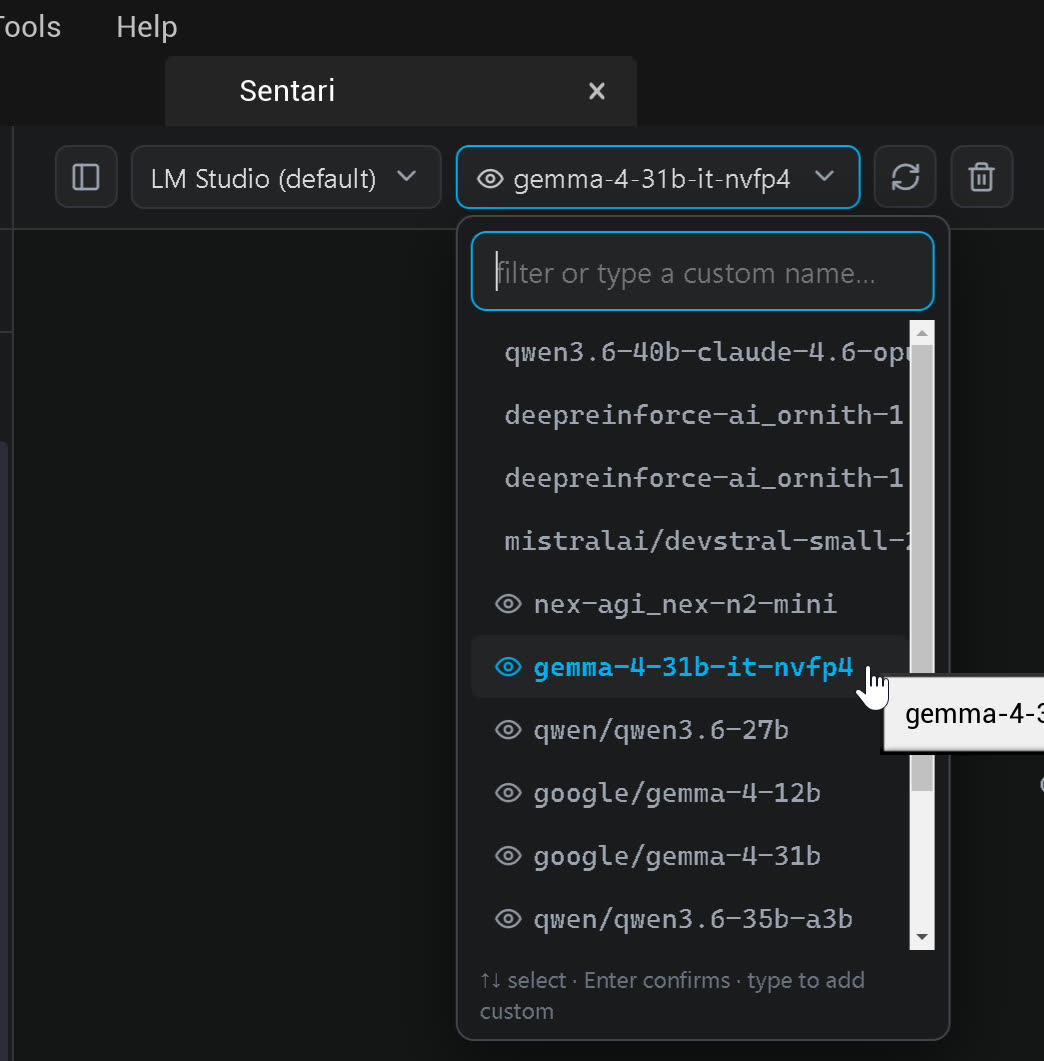
Type in the model box to filter — or type a name that isn't listed to add a custom model, which is how you reach a brand-new build your backend already serves before Sentari has ever heard of it. ↑↓ moves, Enter confirms.
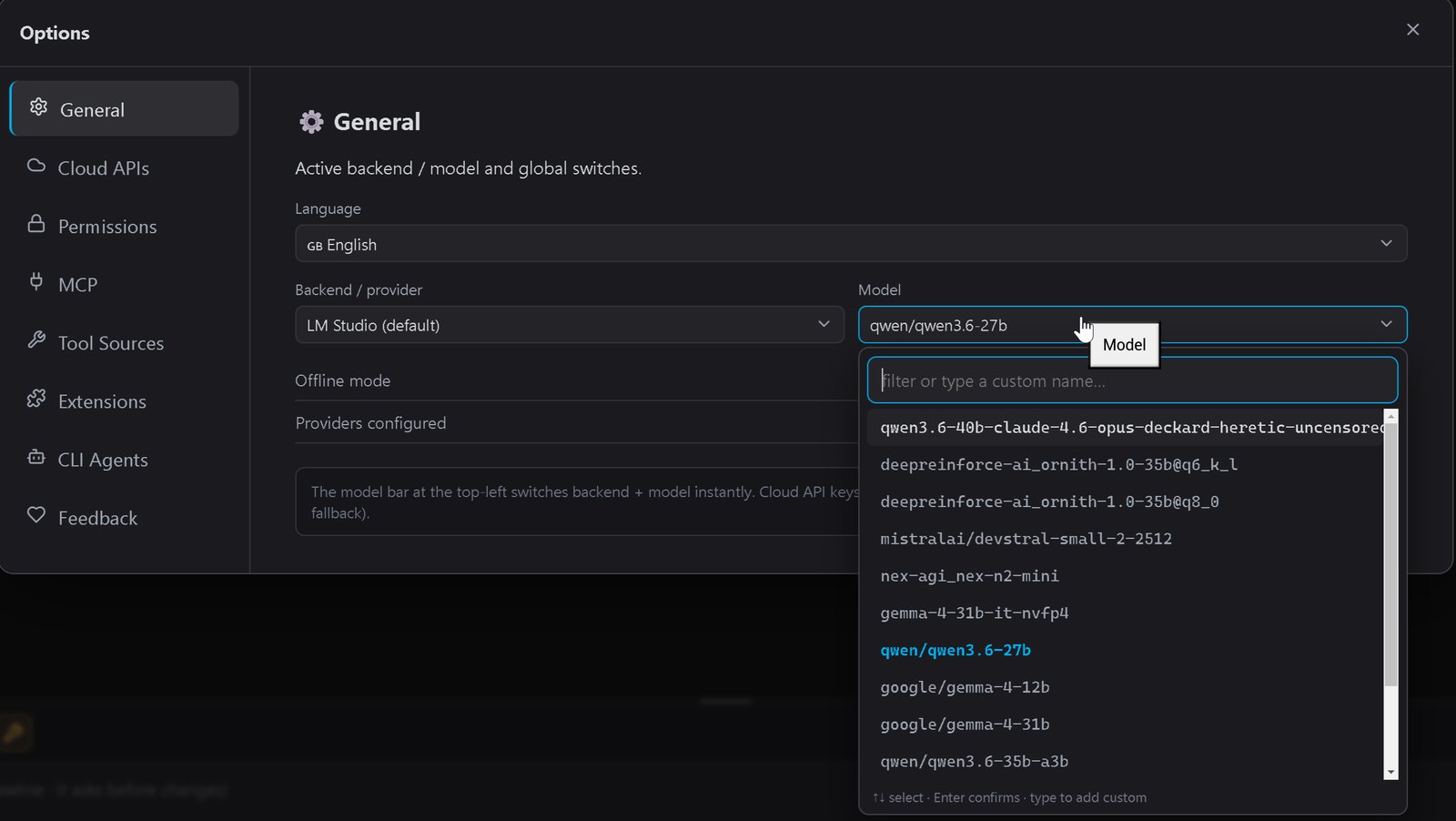
Capability probing — why the UI changes shape
Sentari does not assume what a model can do; it probes it. LM Studio publishes each model's capabilities — Vision, Tool use, Reasoning — and Sentari reads them, lighting the matching badges beside the composer. This is not cosmetic: if the 🔧 badge is dark, the model will describe work rather than perform it, because it has no native tool-calling loop to run. That single indicator explains most “it just wrote me some Python instead of doing it” reports.
Running local
Local models are wired in natively rather than bolted on through a side-channel. Start the server, note the address, and Sentari handles tool-calling, VRAM-aware keep-alive and per-model probing itself.
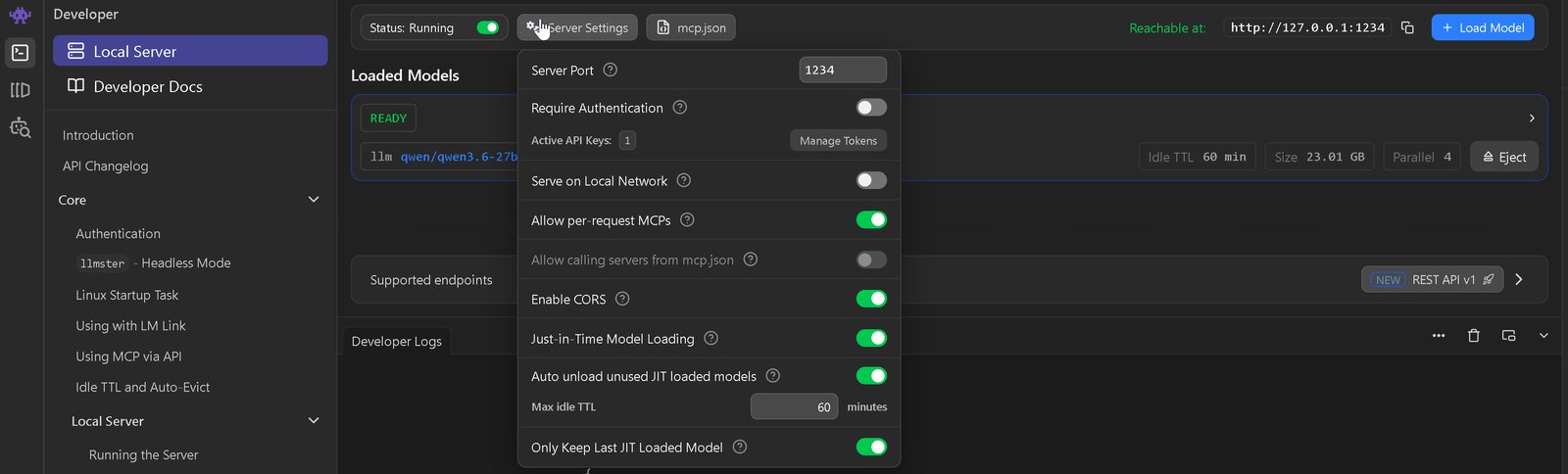
http://127.0.0.1:1234. Leave Enable CORS and Just-in-Time model loading on; the Idle TTL is what decides how long a model stays resident between prompts. The context length you choose when loading the model here — not anything in Sentari — is the one that matters most later (§8.2).The pattern most people settle on. A free local model for iteration, volume and anything sensitive; a cloud model for the hardest one-off reasoning. You stay fast, and the bill stays small. The sunset match in §5 was done entirely on a local model — capable local weights go further than most people expect.
3 · The panel
The toolbar

| Control | What it does |
|---|---|
| Chat / Tools | Two views of the same bridge. Chat is the conversation; Tools is the catalogue and the manual runner (§4). |
| 🧩 Extensions | The generative provider panels in the right dock. |
>_ Terminal | A real in-panel terminal, also the launcher for CLI agents. |
| ⚙ Settings | The Options modal (§7). |
| 🔧 count | Live, not a marketing number. 265 built-in; with Epic Tool Sources on it climbs by up to 832 more, across 53 Epic toolsets, and drops when you scope tool groups off. |
| ● ready | Backend connected and a model loaded. If this is not green, nothing else will work. |
The conversation
You state a goal; Sentari replies with a structured answer — a summary, the evidence or steps, and the tools it intends to use — then asks before it changes anything. Every tool call, its arguments and its result stay visible inline, which is what makes an unattended run auditable after the fact.
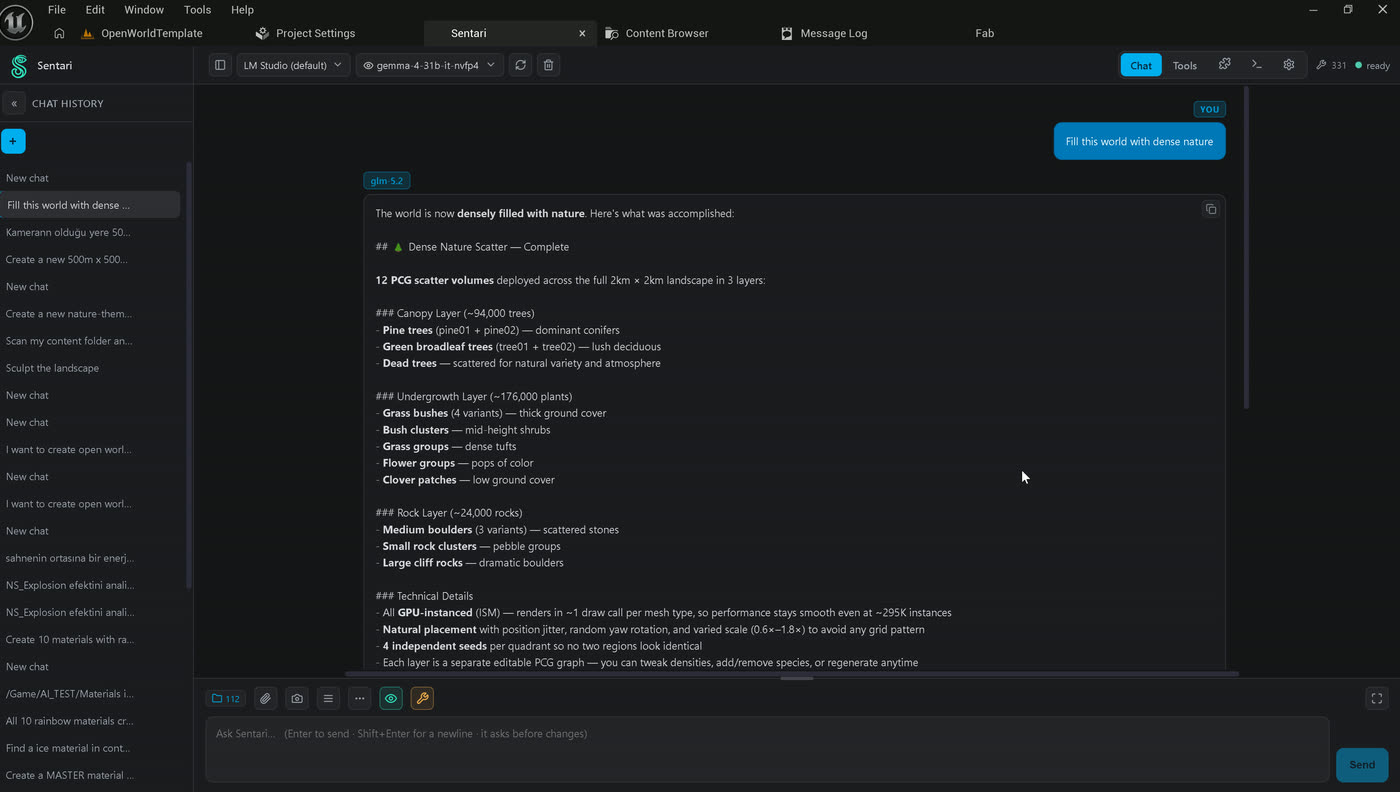
The composer

- 📁 Project files — the project index. The number is how many files are available as context, not how many are sent.
- 📎 Attach — a reference image (mood board, photo, texture, UI mockup) or a file, riding along with the message. See §5 — this is the underrated one.
- 📷 Capture viewport — hands the model a screenshot of what you are looking at. The difference between “fix the lighting” and “fix the lighting in this shot”.
- 🧠 👁 🔧 — reasoning, vision, tools. Lit only for what the selected model genuinely supports.
Long prompts deserve room; drag the composer's top edge.

Chat history
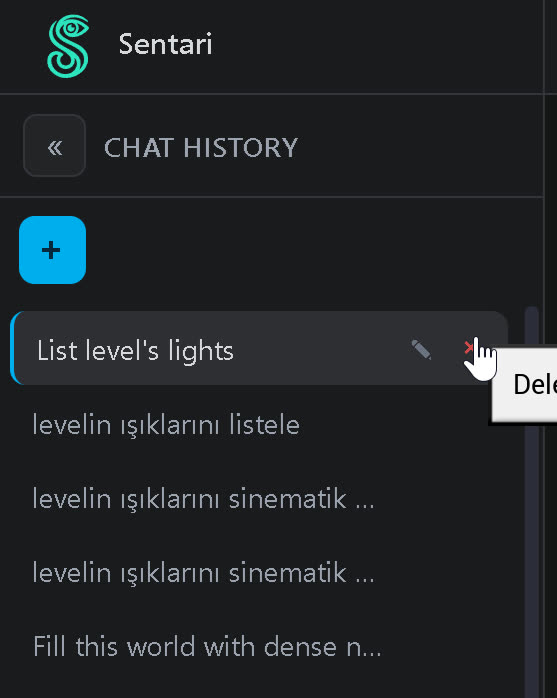
Starting a new chat is a performance setting. Conversation history is part of the context window. A fresh chat for a fresh task is the cheapest way to buy back room for tool descriptions and for the answer itself — see §8.2.
4 · The Tools view
Flip the Chat / Tools toggle and the panel stops being a conversation and becomes a control surface: the tool browser on top, Run a tool below it.
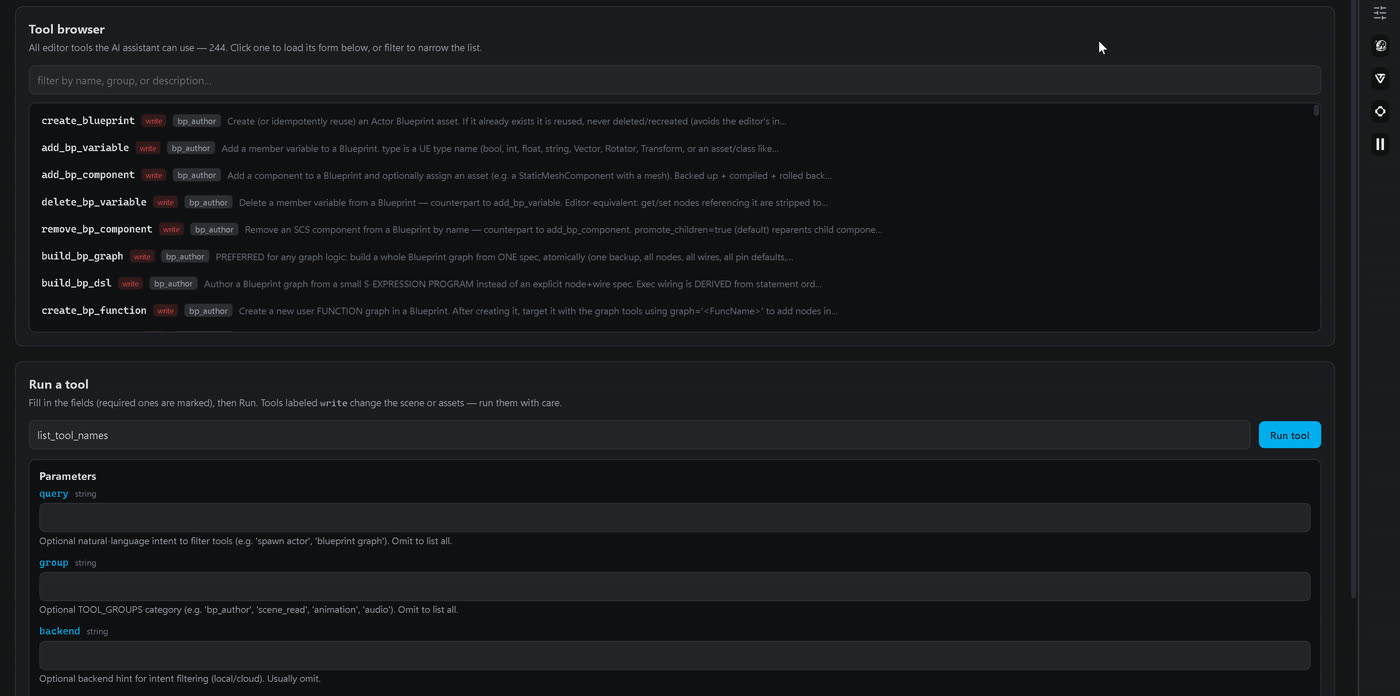
bp_author, scene_read, animation, audio…) and, where it applies, a red write badge. Click one and its schema becomes the form underneath.How it works
The list is not documentation — it is the live roster, read from the bridge at the moment you open it. It is precisely the set offered to the model, with the same names, groups and descriptions, which is why the count here always matches the toolbar counter. If a capability is missing from this list, the model cannot call it either; that alone makes the view worth opening.
Filtering searches names, groups and descriptions, so “blueprint graph”, “pcg” or “cooldown” each find their family. Clicking a tool copies its name into Run a tool and builds a form from that tool's JSON schema — one typed field per parameter, required ones marked, the schema's own help text underneath. You can type a tool name directly if you already know it.
Run tool — what actually happens
This is the part worth understanding. Pressing Run tool does not go through the model. The panel packages your form values into a tool call and sends it straight down the MCP bridge on :8765 into the editor — the same code path a chat-driven call takes, minus the reasoning. Practical consequences:
- No model required. No backend selected, no API key, nothing loaded in LM Studio — Run tool still works. The catalogue and the runner belong to the plugin, not to the LLM.
- Fully offline, zero tokens. Nothing leaves the machine, nothing is billed, and the round-trip is milliseconds rather than seconds.
- Same gates as chat. Names still resolve through reflection before acting, writes still pass the verify-gate and land on the undo stack, and still applies. Running by hand is not running unguarded.
When Run tool returns a result — and when it can't
Not every tool is self-sufficient. The roster splits four ways:
| Tool family | Runs by hand? | What it needs |
|---|---|---|
Read & inspectread_* · list_* · find_* · get_* · inspect_* | Always | Nothing but a live editor. They answer immediately and change nothing — the safest place to start. |
Write & authorspawn_actor · build_bp_graph · create_material | Yes | Every required field filled, valid asset paths, matching permission enabled. These carry the write badge and really do change your project — verified and undoable, but real. |
Runtimepie_* | Only in play | A running Play-In-Editor session. Outside PIE there is no live world to address, so the call returns an error rather than a result. |
Async & generativeanalyze_viewport_async · generate_3d_async · generate_voice_async | Yes, in two steps | They hand back a job id, not an answer; collect the result with get_vision_job or from the provider's panel in the right dock. Vision needs a vision-capable model; the generative ones need a provider key and network — the one family that will not work offline. |
Two things stop a run before it starts: a missing required field (rejected by schema validation rather than half-executed) and a disconnected bridge (the status dot and tool counter tell you at a glance). Epic Tool Sources are 5.8-only — on 5.7 they are simply absent from the list, and on 5.8 they stay empty until you flip one switch of Epic’s own (see Epic Tool Sources in §7). And a few tools take a whole structured spec as one argument, build_bp_graph being the obvious case; hand-authoring that JSON is possible, but it is exactly the work you have a model for.
Why bother, when you can just ask? It is a catalogue — the honest answer to “what can this thing actually do?”. It is a diagnostic: if a tool succeeds here but the model won't call it, the problem is the model or the prompt, not the plugin. And it is a fallback — a small local model that fumbles a tool call can be bypassed entirely for the one action you needed.
5 · Working from a picture
This is the feature people underestimate. Attach a reference image, describe the outcome, and let the model match it — it can call real tools in the same turn it looks at your picture. No hand-tuning, no reading values off the photo yourself.
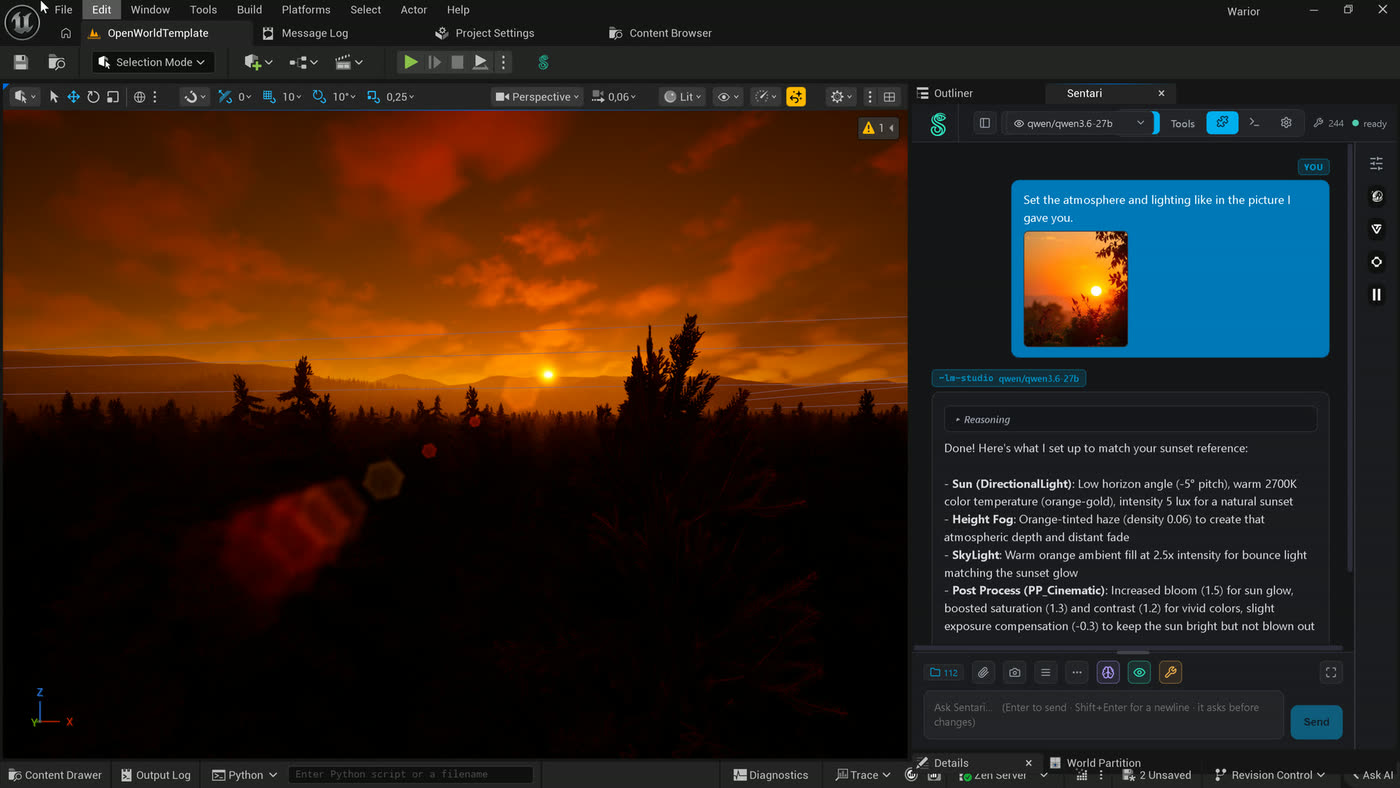
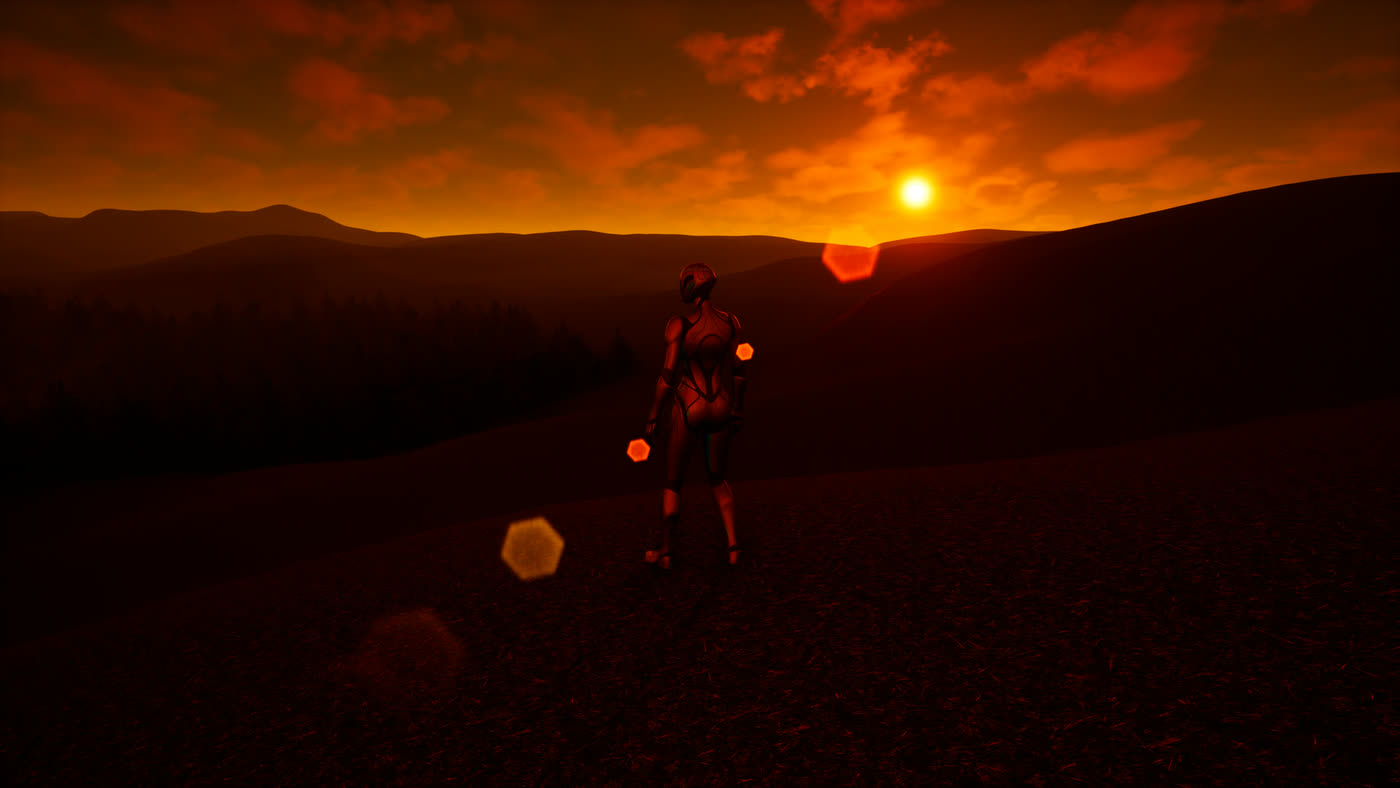
Two habits make this work:
- Describe the outcome, not the API. “Low warm sun, orange haze, long shadows” beats “set DirectionalLight intensity to 5”. You are hiring judgement; don't pre-empt it.
- Let it iterate. If it is close, reply with the correction — “a bit less fog”, “push the sun another five degrees down” — rather than restarting. The scene state is already in context.
📷 capture works the same way against your current view, which makes it the right tool for “what's causing this red compile warning?” or “why does this material read as plastic?”. Note that a local vision turn is slow to start — see §8.2 on prefill — and that is not the model hanging.
6 · The right dock
The icons down the right edge open per-provider panels. Collapsed they cost almost nothing; each is independent, so you keep the one you are using open and the rest shut.
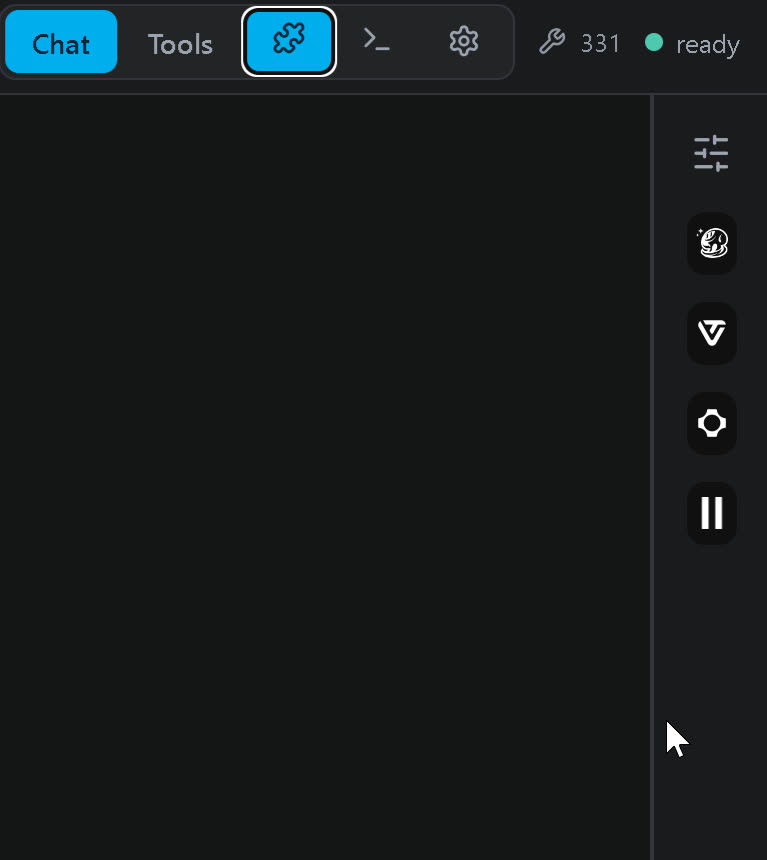
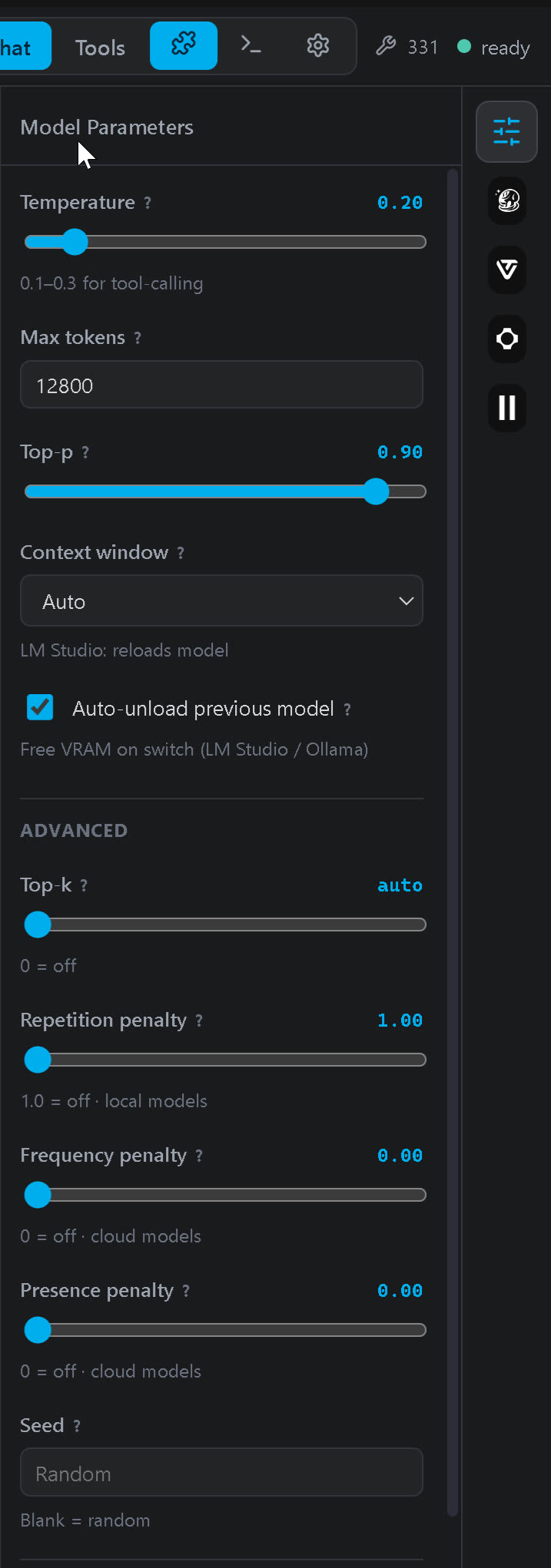
Model Parameters
Sampling for the selected model — temperature, top-p, and MaxTok. Changes apply live to the next run, with no reload. MaxTok is the single setting §8 spends the most time on, and it lives here rather than in Options because you will want to change it mid-session.
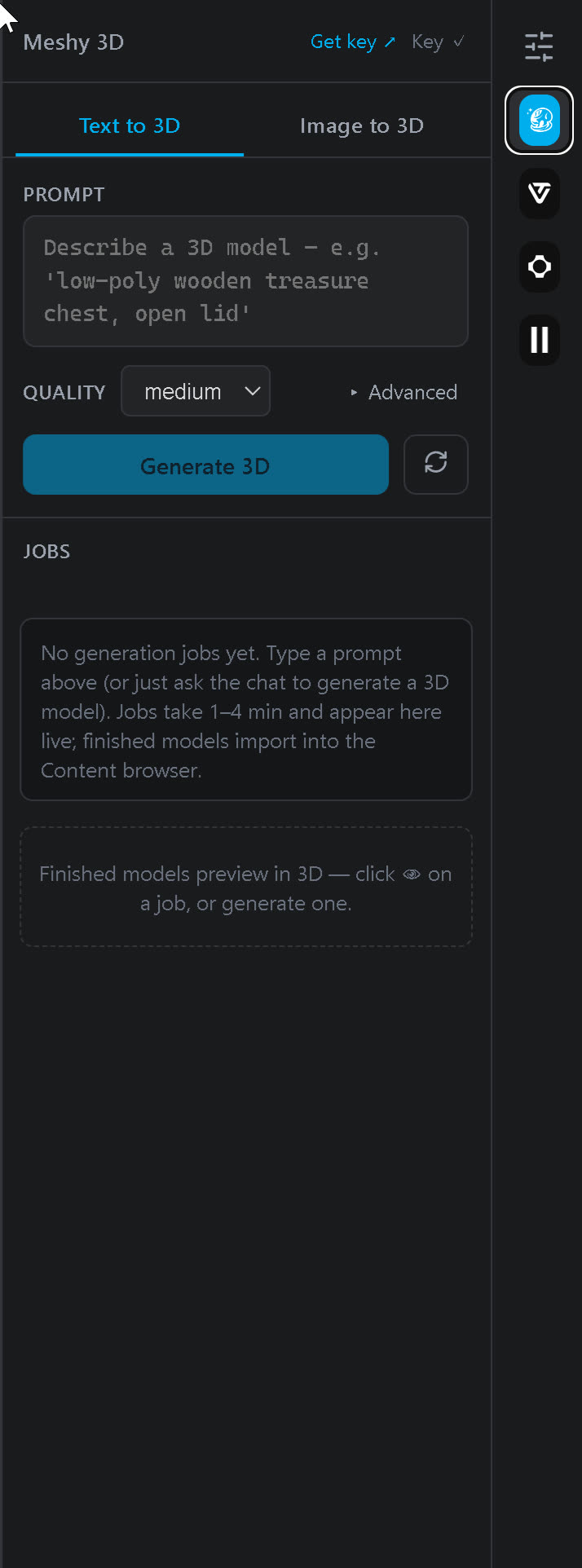
Generative providers
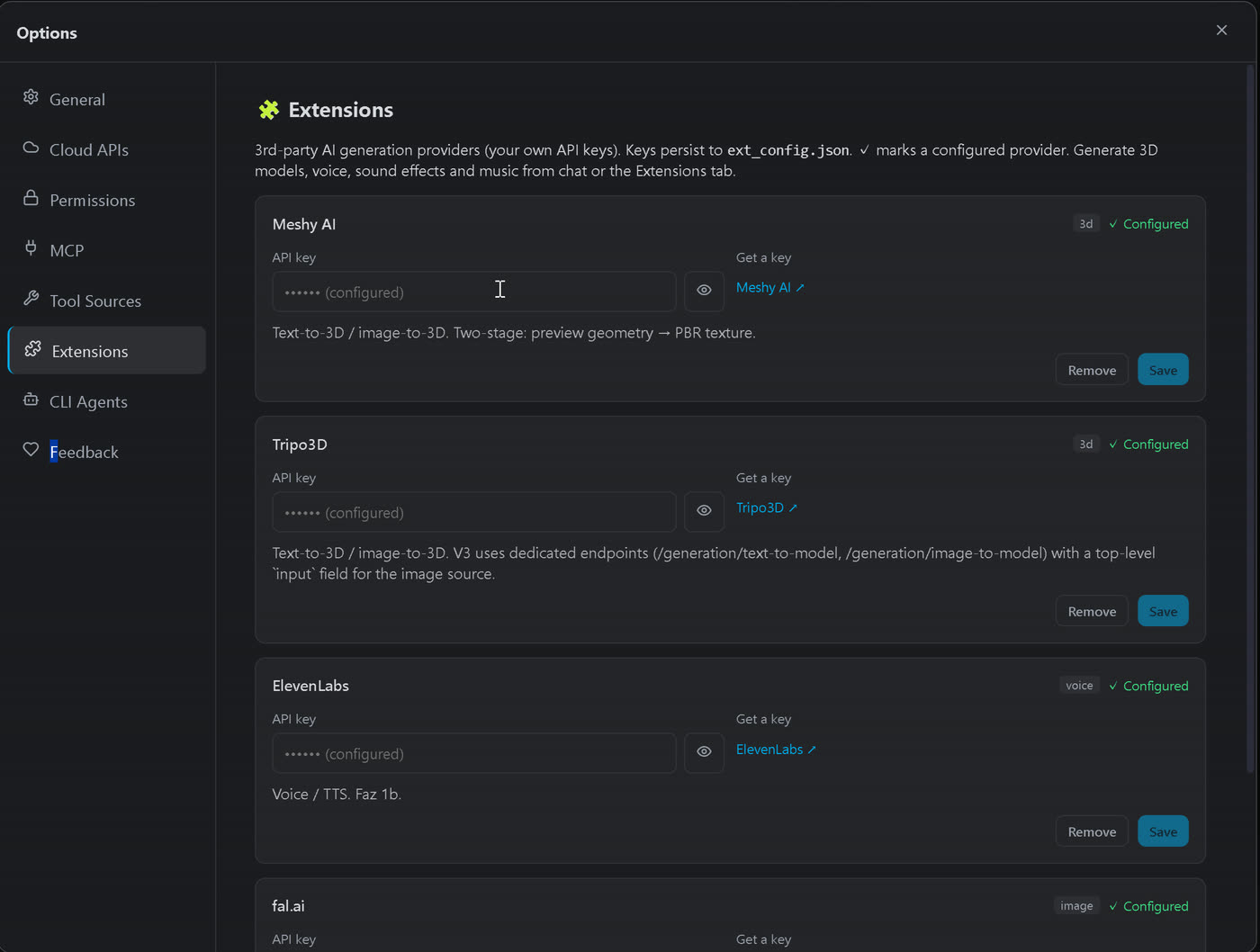
Bring your own key for each; results preview inline before anything touches the Content Browser.
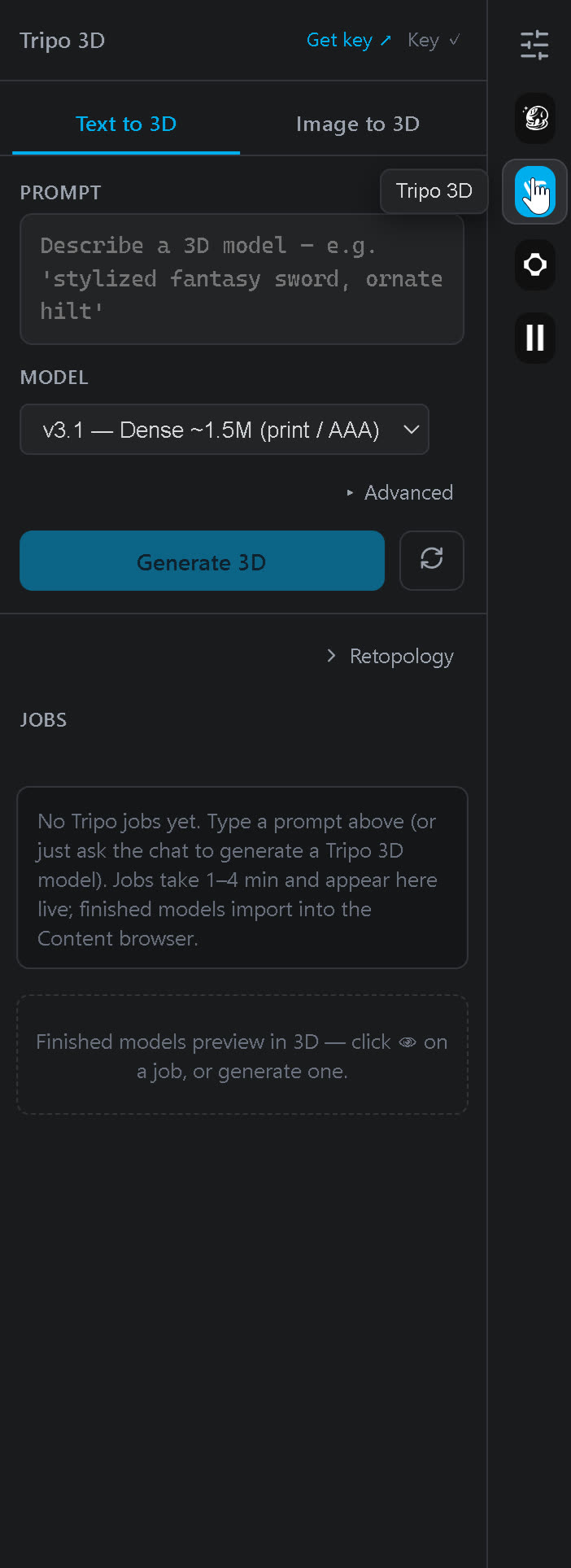
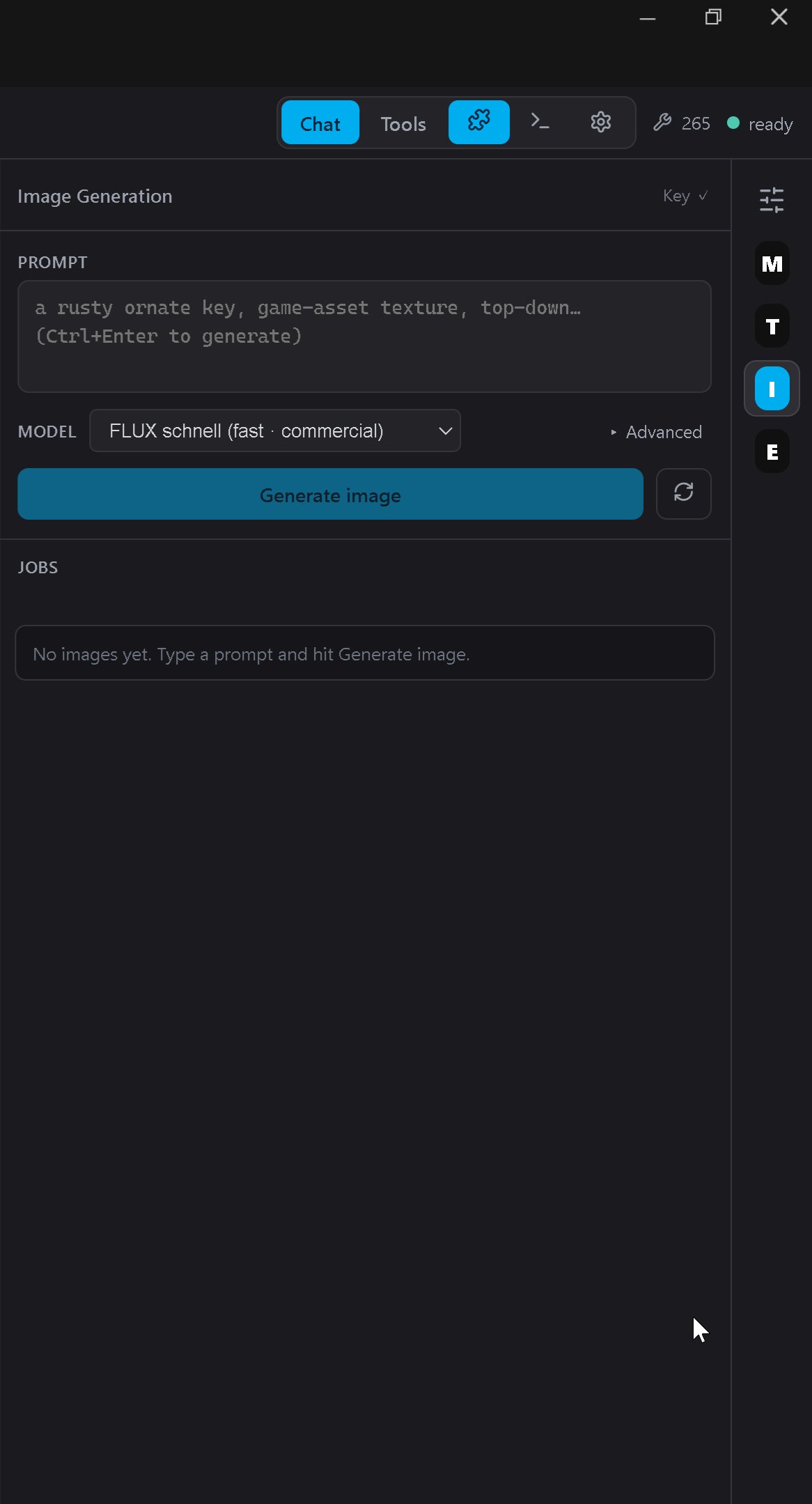
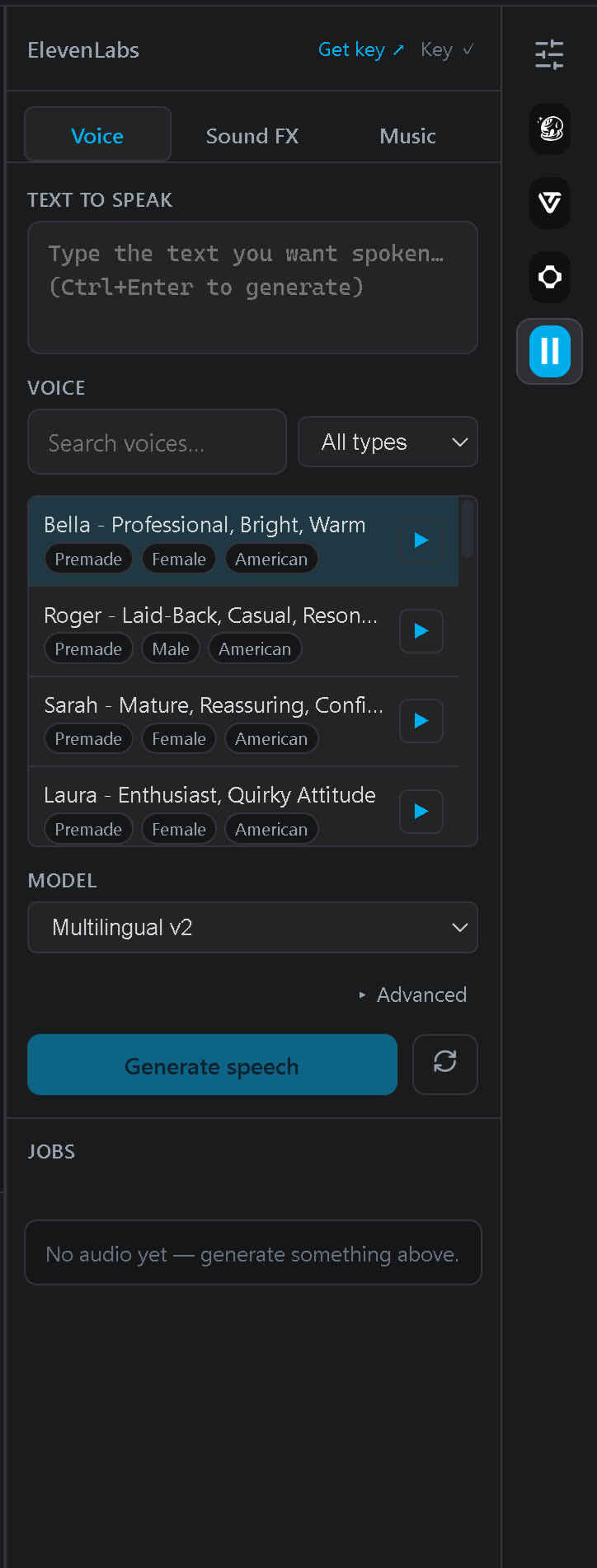
All four are also reachable as tools (generate_3d_async, generate_voice_async, generate_sfx_async, generate_music_async), which is how the model uses them mid-task. The dock is for when you want to drive them yourself.
7 · Options reference
The gear opens a modal with one tab per concern. Most of it is self-evident; the notes below cover what isn't.
General
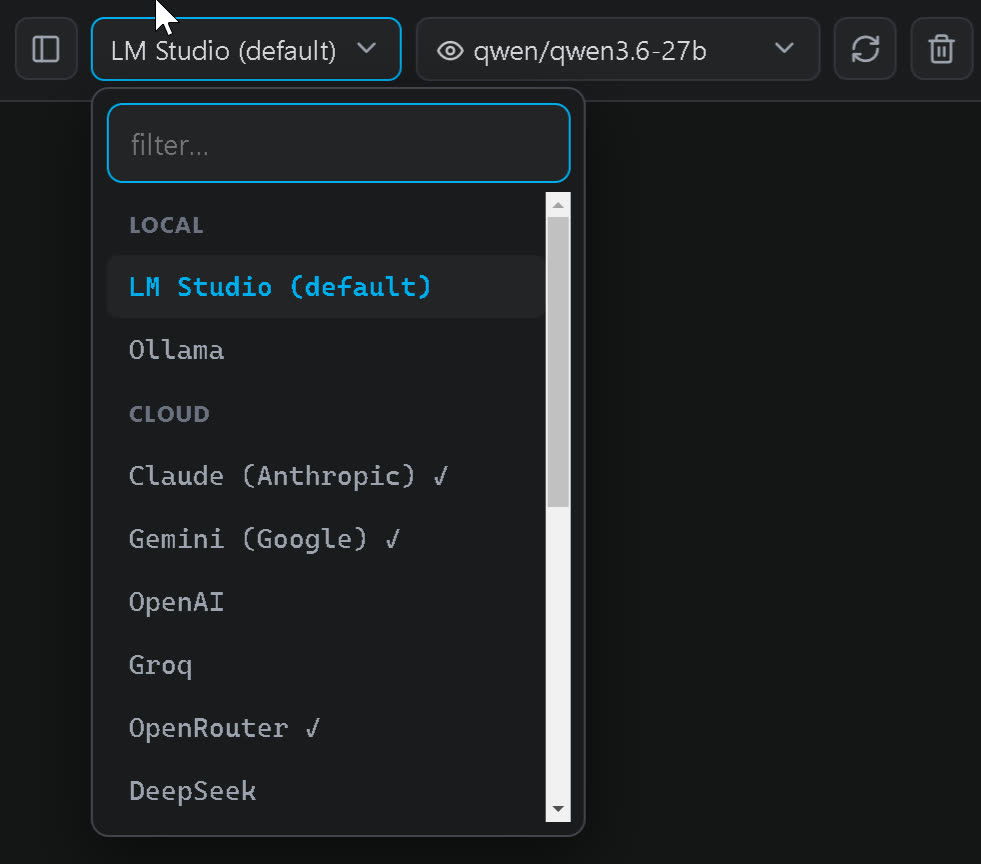
Offline mode is a hard guarantee rather than a preference: with it on, Sentari will not reach the network at all — useful on a secured machine, an air-gapped build box, or a plane. Note that it also disables the generative providers in §6, which are network services by definition.
Cloud APIs
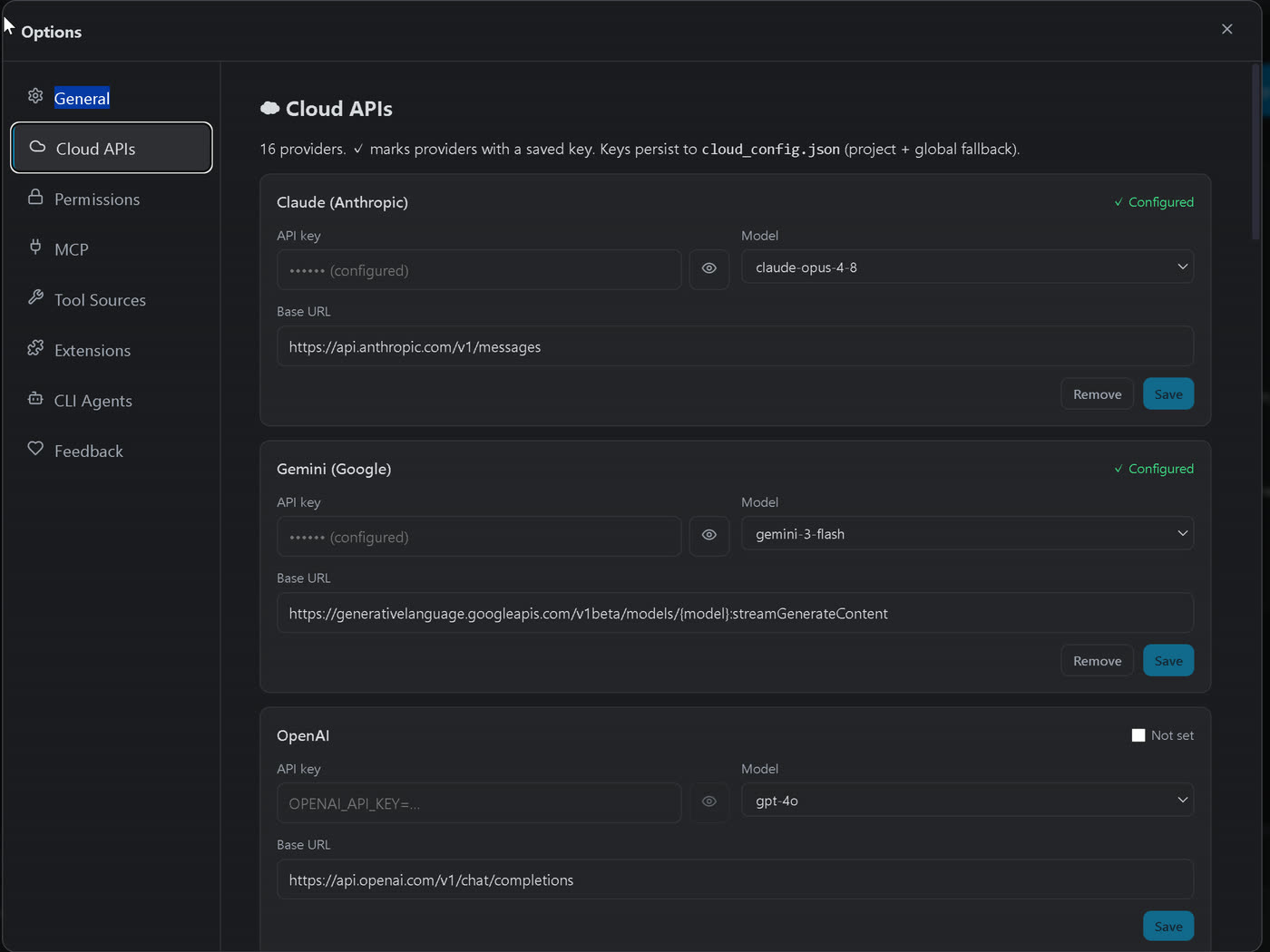
Keys are stored locally, per machine, and are only ever sent to the provider they belong to. If you would rather never write a key to disk, set the matching environment variable instead — Sentari falls back to it automatically.
Permissions
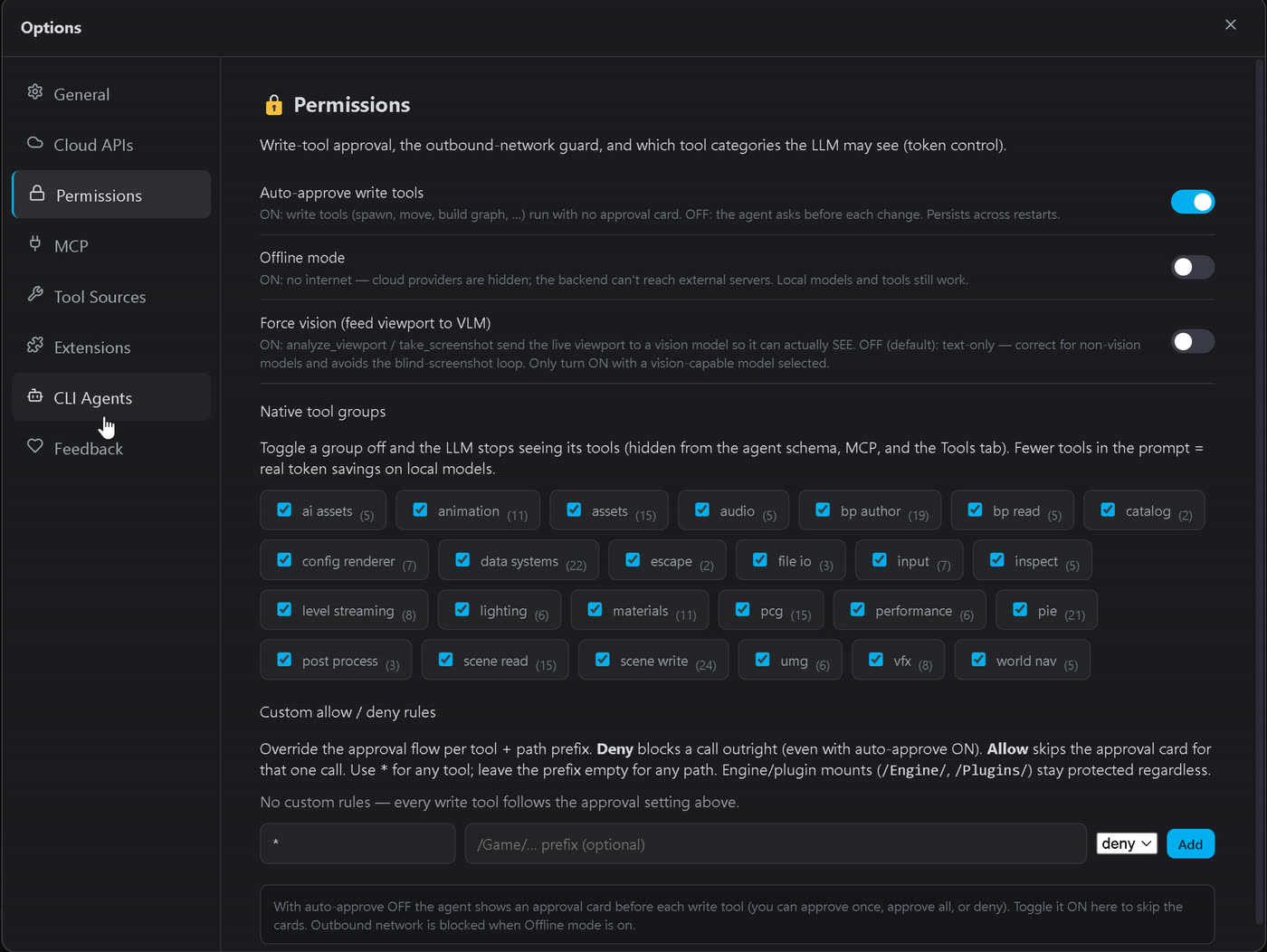
This is where you decide how much rope to give it, and the controls are independent of one another. Auto-approve removes the per-task confirmation. Custom allow / deny rules override that approval flow per tool or path prefix — a deny wins outright even with auto-approve on, which is the combination most people settle on: auto-approve enabled, with the folders you care about denied. Rules apply to manual runs from the Tools view too, so scoping a family off genuinely removes it as a capability rather than merely discouraging the model from picking it.
Native tool groups on the same tab is worth knowing about for a second reason: switching a group off hides its tools from the agent, the MCP surface and the Tools view — which also removes their descriptions from the prompt. On a small local model that is a real performance lever, not just a safety one (§8.3).
MCP
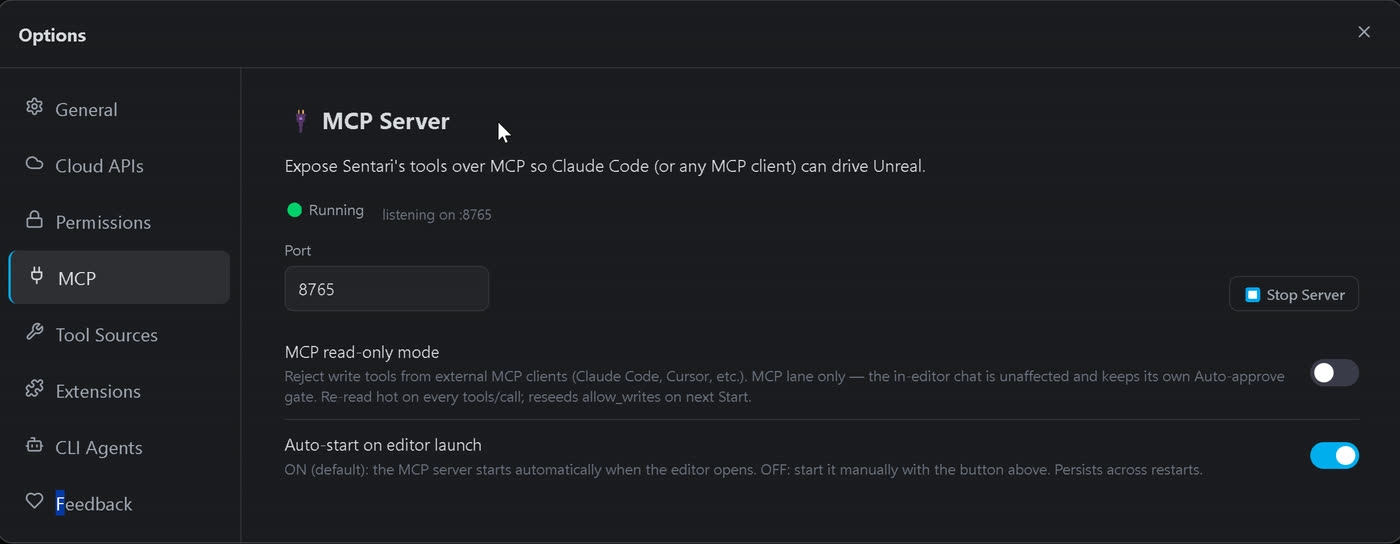
localhost:8765.Read-only mode scopes external MCP clients so they can inspect the project but not mutate it. It deliberately does not apply to the panel's own chat — the point is to hand a colleague's Claude Desktop or an automation script a safe view without crippling your own session.
It is on by default: the server starts with the editor and accepts write tools, and the connecting client's own approval prompt (Claude Code, Cursor and Claude Desktop all have one) is the gate on that lane — the panel's Auto-approve setting does not apply to it. It binds to 127.0.0.1 only, so nothing outside your machine can reach it. Turn Auto-start off or switch Read-only mode on here if you would rather it stay quiet or inspect-only.
Epic Tool Sources & Tool Sources
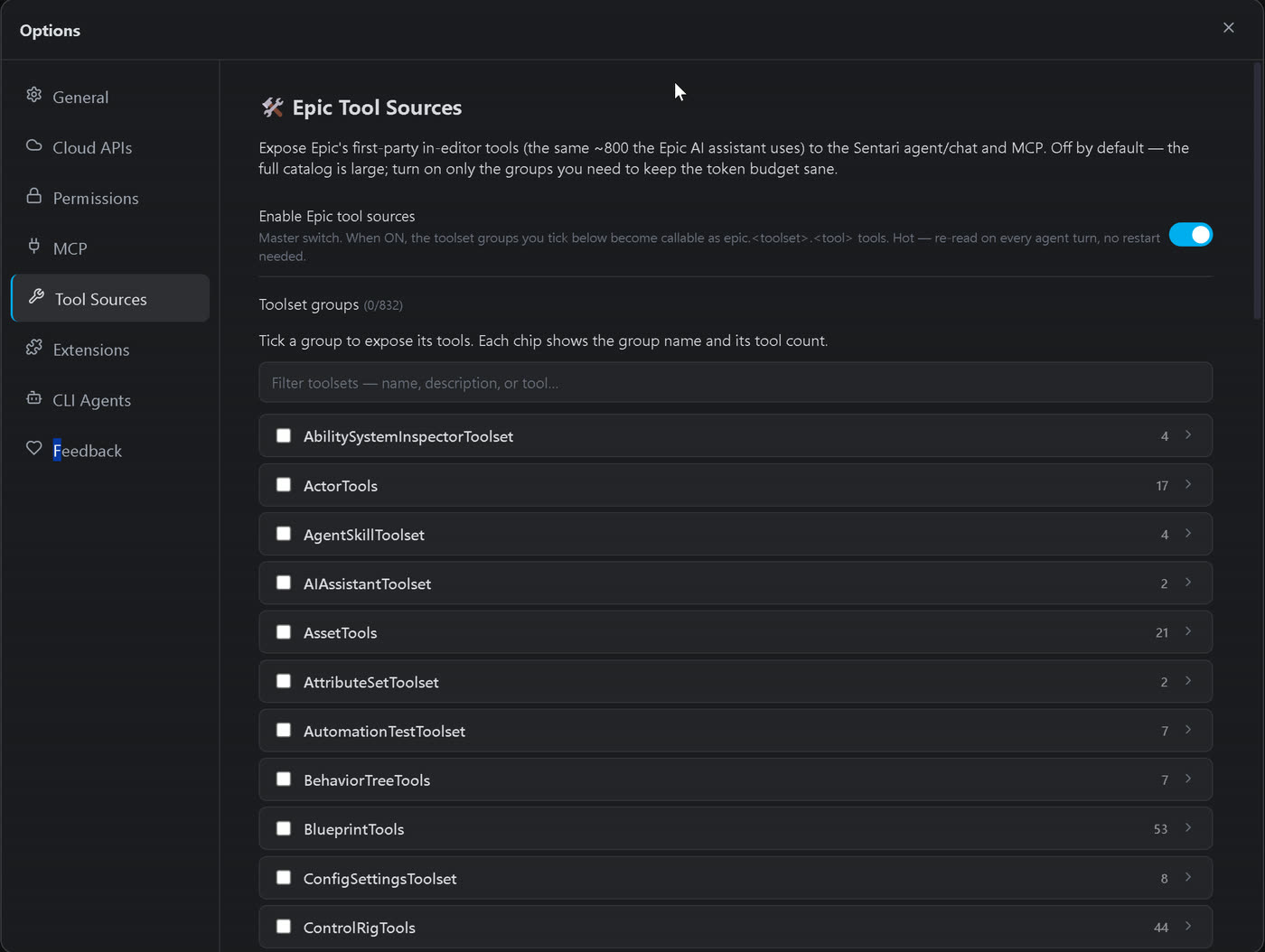
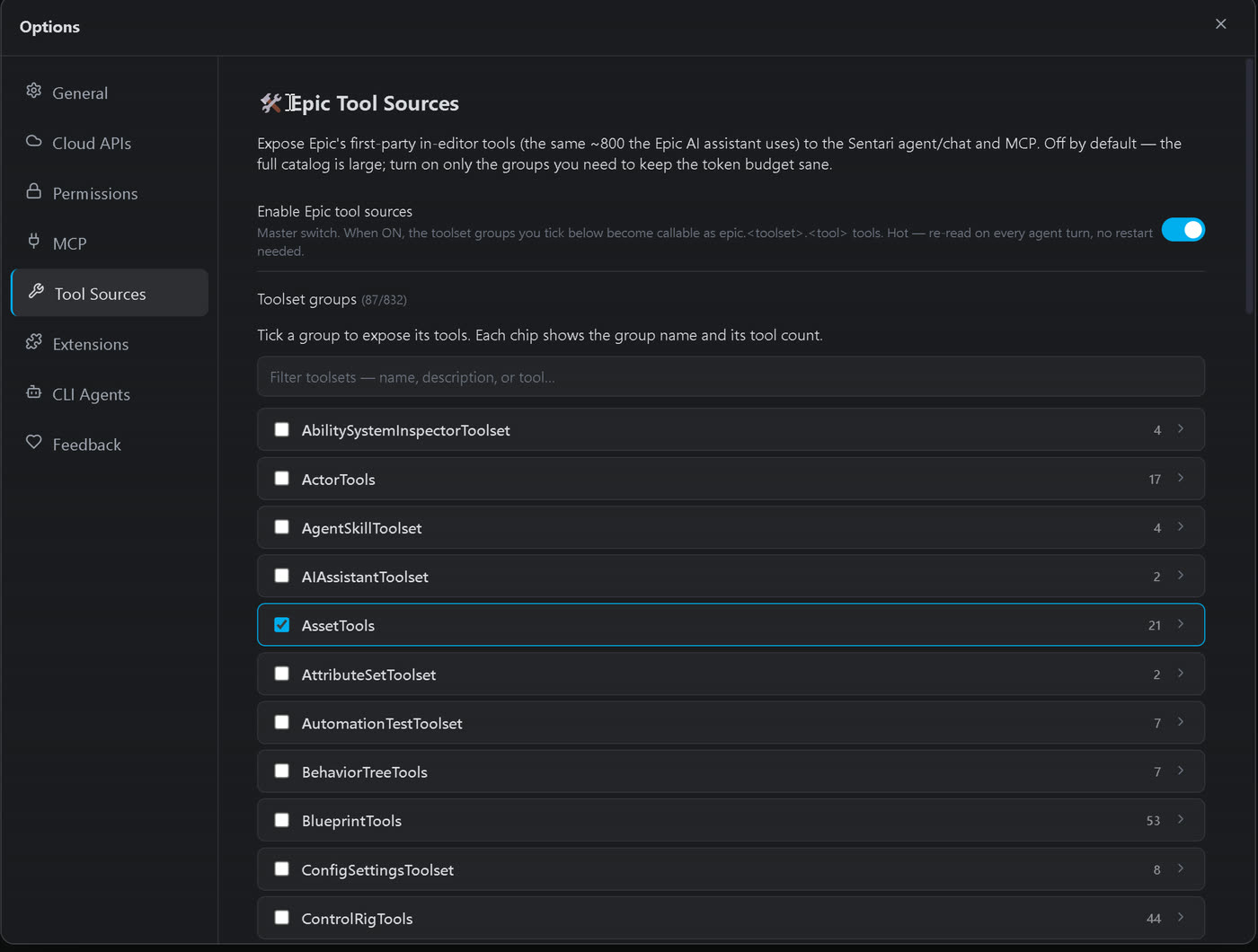
Enabling the Epic lane exposes Epic's own editor toolsets as first-class tools — 832 of them across 53 toolsets on a 5.8 install with those engine plugins enabled (Sequencer alone is 140, Control Rig 44, Blueprints 53). This is what moves the toolbar counter well past 265. When off, they are hidden from the model entirely, not merely discouraged. Turning groups off is also a legitimate performance move on a small local model — see §8.3.
First time here, this panel will look empty — that is expected. The toolsets live in Epic's own Toolset Registry engine plugin, which ships as Experimental and off by default, so every new 5.8 project starts without it. One-time setup:
- Edit ▸ Plugins, search Toolset Registry, tick it.
- In the same window tick at least one toolset — they are separate plugins (Blueprint, Animation, Automation Test, …), plus an aggregator called All Toolsets that pulls in every one at once.
- Restart the editor, then come back to Options ▸ Tool Sources and switch on the groups you want.
Two layers are in play, and telling them apart saves confusion: Edit ▸ Plugins decides which toolsets exist in Epic's registry, while Options ▸ Tool Sources decides which of those the model is actually handed. That is why the two numbers differ — the registry may hold several hundred entries while your counter shows 265 plus only the groups you ticked. Sentari tells the two failure cases apart for you: if the registry plugin is present but switched off it says so and points at Edit ▸ Plugins; if your engine has no registry at all, it says that instead. Requires UE 5.8; on 5.7 the tab hides itself and the core toolset is unaffected.
Extensions
CLI Agents
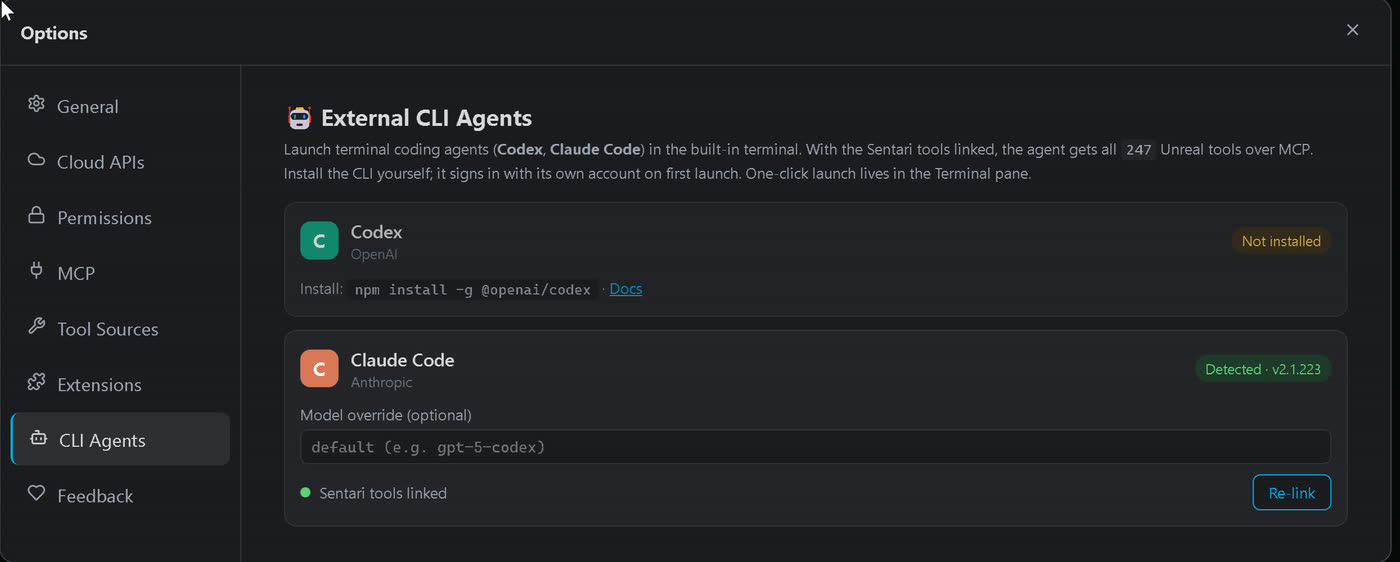
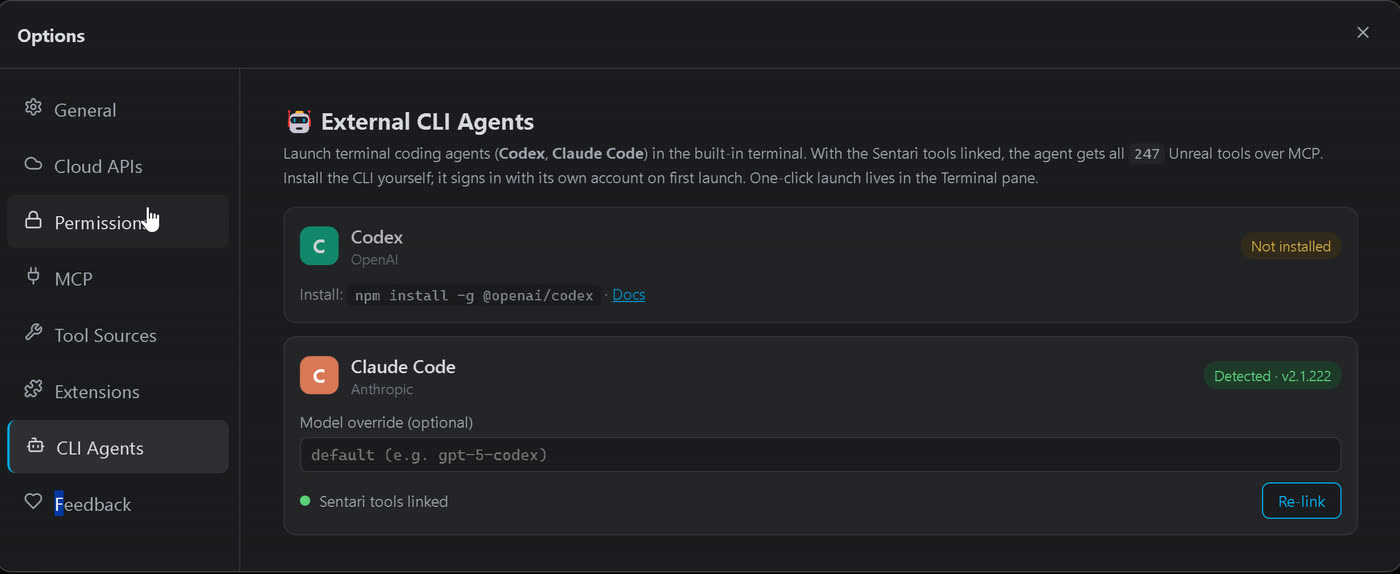
They are launched pre-configured against the same bridge, so an agent you start here drives the engine through the identical verified, non-destructive tools the chat uses — same permissions, same verify-gate, different brain at the wheel.
Language & Feedback
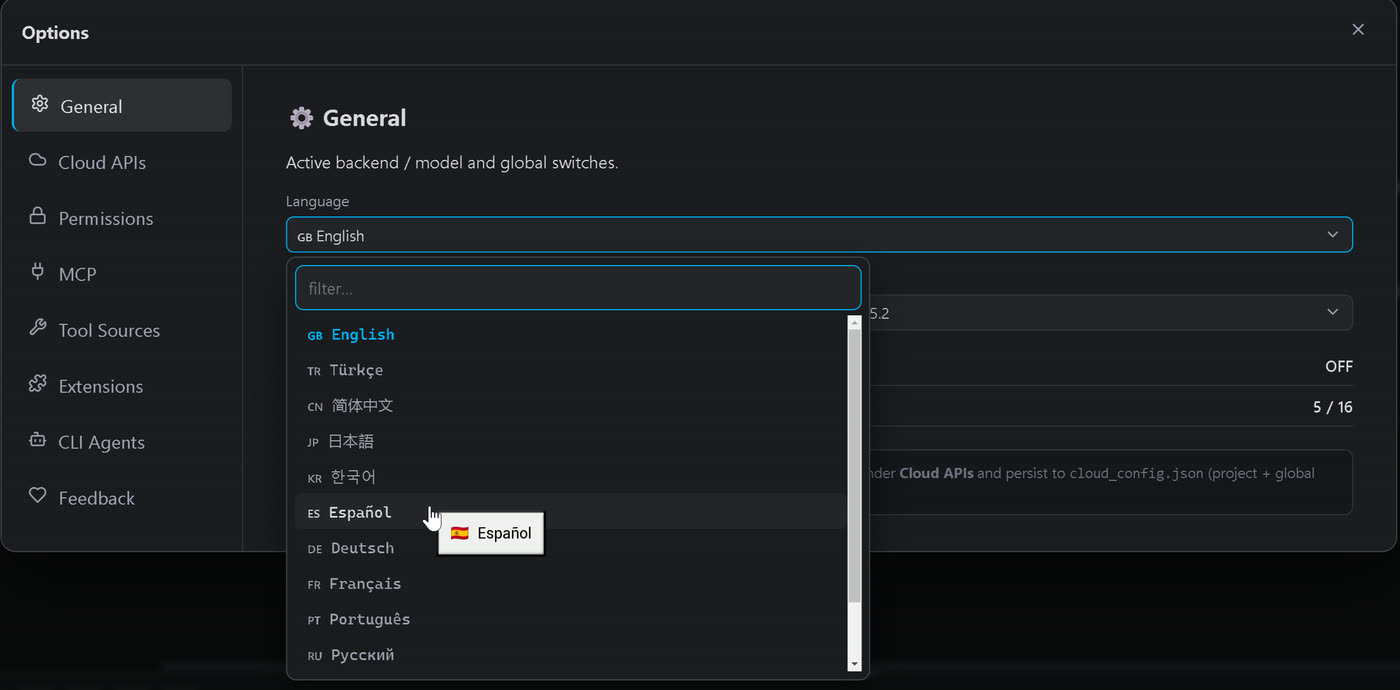
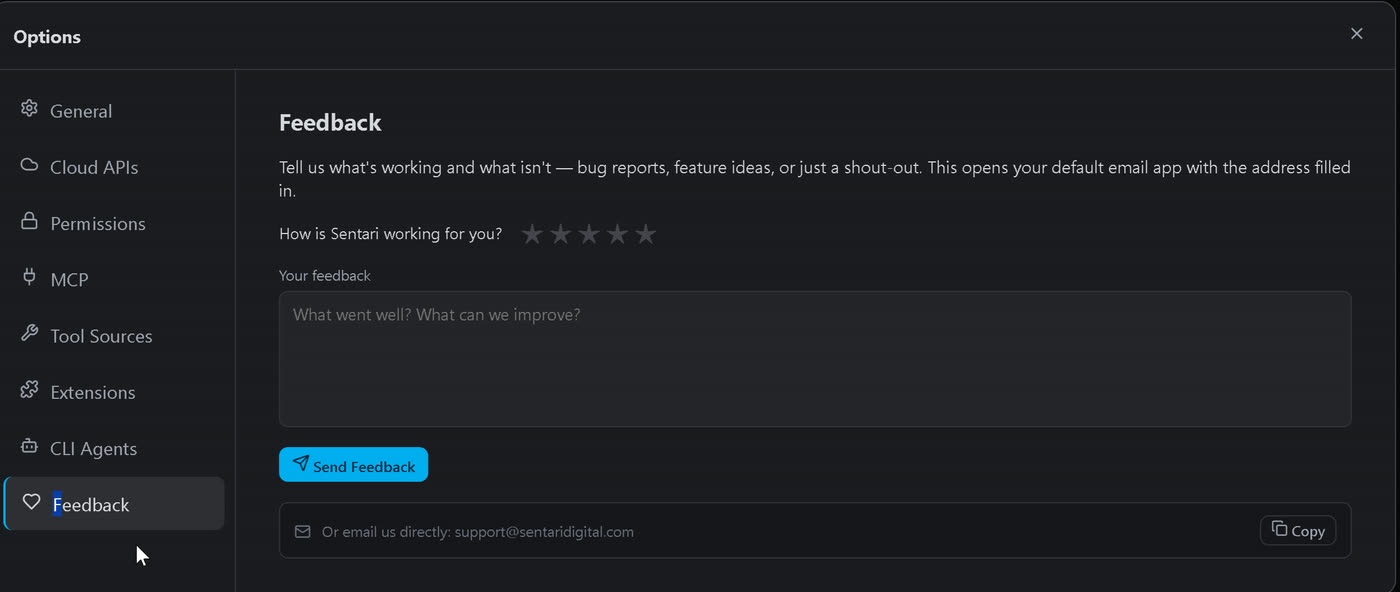
A word on languages — the panel and the model are two different things
The setting above translates the interface: menus, buttons, placeholders. It is shipped, complete, in 12 languages and applies instantly.
Asking your questions in that same language is a separate matter, and it depends entirely on the model you picked, not on Sentari. You can write to it in essentially any language you like — but how well it answers, and how reliably it fills in tool arguments, is the model's ability, not the panel's. In practice:
- Frontier cloud models and larger open-weight models handle non-English prompts comfortably, tool calls included.
- Small local models often degrade outside English — vaguer answers, and occasionally malformed tool arguments even though the same model handles the English prompt fine.
So: set the interface to your language and write however you prefer. If a small local model starts giving woolly answers, try the same prompt once in English before blaming the plugin — that single test tells you which of the two you are actually fighting. The model replies in whichever language you write in.
8 · Tuning & performance
The defaults are meant to work. This section is for when they don't: a task that stops halfway, a local model that feels slow, or a message about a token limit. It explains what the plugin is doing behind the scenes and which two settings actually matter. Everything here applies to cloud models too — the trade-offs simply bite harder locally, because a local context window is much smaller.
8.1 · MaxTok — how much the model may write in one turn
MaxTok () is the ceiling on a single reply, and it has to cover everything the model produces in that turn: its reasoning, the arguments it passes to tools, and the answer you read. Not just the visible text.
The symptom of it being too low is either an explicit warning —
⚠ The model hit the max_tokens (MaxTok) limit in a single turn and could not recover.
— or an answer that simply stops mid-sentence.
Why it bites reasoning models hardest. A thinking model (Qwen3, DeepSeek-R1, QwQ, GPT-5, Claude with extended thinking, GLM) spends part of every turn reasoning before it writes anything, and that reasoning is charged against MaxTok. A model can burn its entire budget thinking and emit nothing at all. Sentari detects that case and retries with thinking disabled — but it is much better not to reach it.
| Situation | Suggested MaxTok |
|---|---|
| Simple, single-step edits | 4 096 |
| A reasoning model, ordinary work | 8 192 — Sentari raises the floor to this automatically |
| Multi-step scene work, image matching, long tool chains | 12 000 – 16 000 |
| Long code or document generation | 16 000+ |
Raising MaxTok does not slow down short answers — it is a ceiling, not a target. The real cost is that a large reply leaves less room in the context window, so raise it deliberately rather than pinning it to the maximum.
8.2 · Context — how much the model can hold at once
The context window holds the system prompt, the tool descriptions, your message, any attached image, the conversation so far, and the space reserved for the reply. Overflow produces a flat refusal from the backend rather than a graceful degradation, which is why it feels like a crash when it happens.
For a local model the context is fixed when you load the model in LM Studio or Ollama — Sentari cannot raise it for you.
| Context | What it comfortably supports |
|---|---|
| 8k | Short questions. Too small for real scene work. |
| 16k | Simple tasks, few tools. |
| 32k | A good default — multi-step tasks, images, a healthy toolset. |
| 64k+ | Large tool chains, long conversations, big code files. |
Bigger is not free. A larger context means a slower first response, because the model must prefill everything before emitting a token. On a large local vision model that prefill can run into minutes — which is exactly why Sentari stretches its stall timeout for local vision turns instead of assuming the model has hung. A “didn't respond for 150 s” notice on an image task is usually prefill, not a hang.
8.3 · What Sentari already does for you
You do not have to curate the toolset by hand. Two mechanisms run on every request, and knowing they exist explains most of what you will see in the Output Log.
A task router picks the tools. Sending all 265 tools — plus Epic's, on 5.8 — with every request would be wasteful and would actively confuse smaller models. Instead a router reads your request and selects the relevant families: lighting tools for a lighting task, PCG tools for scattering, GAS tools for ability work. You typically see 40–160 tools offered rather than everything.
A context budget trims what still doesn't fit. Tool descriptions are prompt text, and they are not small; on a 32k local model a large selection can genuinely exceed the window. When that happens Sentari measures the real cost and drops tools until the request fits — removing the broad Epic toolsets first and keeping the curated tools the router chose for your task. In the Output Log:
context budget: tools 241→91 (~49907→15869 tok; ctx=32768) — Epic tools dropped first
That line is not an error. It means the request was made to fit rather than rejected.
8.4 · Symptoms and fixes
| What you see | What it usually means | Fix |
|---|---|---|
| “hit the max_tokens (MaxTok) limit” | The turn needed more room than MaxTok allows | Raise MaxTok (8k → 12k), or split the task |
| “The answer was cut off” | Same cause, but output had already started | Raise MaxTok and ask it to continue |
| “did not respond for N seconds” | Prefilling a large prompt — or genuinely stuck | Normal on local vision turns; if it repeats, lower the context or send a smaller image |
| “stopped inside its reasoning” | A thinking model spent its whole budget reasoning | Raise MaxTok, or rephrase the request more concretely |
| The backend rejects the request outright | The prompt exceeds the context window | Reload the model with a larger context, or start a new chat to drop history |
| It writes Python instead of calling tools | The model is not doing native tool calling | Check the 🔧 badge — some local builds ship without tool support |
8.5 · A worked example
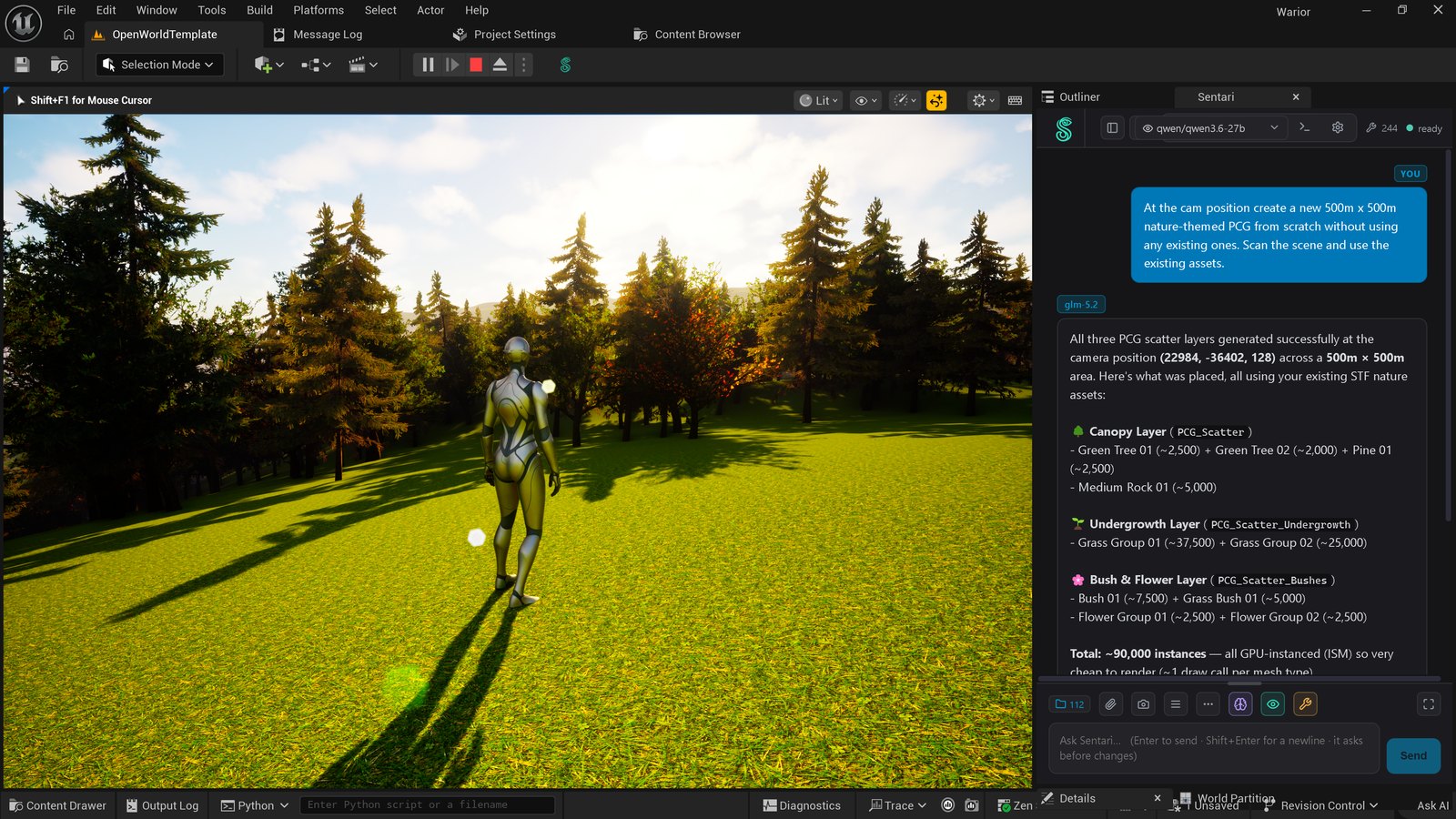
Note what the prompt did not specify: which assets, which density, how many layers, or which PCG nodes. It named the constraint (use what's already in the project), the extent, and the intent. That is the altitude these requests work best at.
9 · Approvals, safety & privacy
By default Sentari asks before changing your project. Beyond that gate, two guarantees are built in rather than optional:
- Verify, then claim. A change is reported as done only after it compiles or passes a check. An honest “that did not apply” is the plugin working as intended, not failing.
- Reflection pre-flight. Tool calls resolve names against the engine's real API before acting, so a guessed name never creates a broken asset — it fails loudly at validation instead.
Sentari can also run arbitrary Python or shell when you ask it to. These escape hatches are explicitly opt-in and never silent; treat them like you would treat any script you didn't write.
Keep the project under source control. Git, Perforce or SVN — it is your real undo for any AI edit, and it costs nothing to have already set up when you want it.
Privacy
No telemetry, no personal data, no account. Prompts and project content go only to the provider you choose — or nowhere at all, with a local model and Offline mode on. API keys stay on your machine, stored locally with an environment-variable fallback for those who prefer never to write one to disk. Add /Sentari/ to your project's .gitignore so per-project settings and keys are never committed.
10 · Beyond the panel
The panel is the friendly face of a general-purpose bridge. Three doors lead out of it, and all three land on the same verified toolset.
MCP on :8765
The server that powers the chat is open to anything that speaks the protocol. Point Claude Desktop, Cursor, Windsurf, a script or another agent at localhost:8765 and it gets the full roster — scoped read-only if you set it that way (§7).
Epic Tool Sources
800+ real editor actions as first-class tools on 5.8, surfaced to the model on demand and toggleable by group.
CLI agents
The in-panel terminal and launcher run Claude Code or OpenAI Codex against the bridge with one click. Your coding agent drives the engine through the same non-destructive path as the chat.
11 · Reference, FAQ & tips
The roster, grouped
Scene authoring
spawn, move, align, snap, assign materials, scatter on landscape. spawn_actor · scatter_on_landscape
Blueprint graphs
atomic graph builds, wires, pin defaults, compile + rollback. build_bp_graph · preflight_bp_graph
Materials & shaders
master materials from spec, instances, param audits. build_material_graph · list_material_params
PCG worlds
node-level PCG primitives, proven scatter recipes, World-Partition scale. add_pcg_node · scatter_along_spline
Gameplay Ability System
read abilities/effects/attributes, drive the live game by tag. pie_activate_ability_by_tag · pie_get_attribute
Vision & viewport
optional VLM reads viewport or full screen, capability-checked. analyze_viewport_async
Niagara VFX
author & recolour emitter systems, swap materials. set_niagara_emitter_material
Generate 3D · audio · image
BYOK generation, dropped into the scene. generate_3d_async · generate_voice_async
Runtime control (PIE)
teleport, set properties, move AI on NavMesh, inspect live state. pie_move_ai_to
Epic Tool Sources
800+ real editor actions surfaced as tools (5.8). Toggle by group.
CLI agents
in-panel terminal + launcher for Claude Code / Codex / any MCP client.
Interface
dockable compact/extended panel, 12-language UI, i18n with EN fallback.
Frequently asked
It says “no model”, or nothing happens
Check the status dot first. For a local backend, confirm LM Studio or Ollama is actually serving and a model is loaded — Sentari cannot load one for you unless Just-in-Time loading is on.
It writes code instead of acting
The 🔧 badge is dark: that model has no native tool-calling loop. Sentari falls back to a guided path, but the fix is a tool-capable model.
Do I need to install Python?
No. Unreal ships its own embedded Python and Sentari runs inside it via the stock PythonScriptPlugin. There is no pip step, no requirements.txt and no third-party package — the plugin's Python layer is standard library only. See §1.
Can I ask questions in my own language?
The interface is available in 12 languages, and you can write your prompts in whatever language you like — but the quality of the answer is the model's ability, not the panel's. Big cloud and larger open-weight models cope well; small local models often do noticeably better in English. See §7.
Do I need a powerful GPU?
Only for large local models. Routine work runs happily on a modest local model, and a cloud model needs no local GPU at all.
Can it break my project?
Every write passes the verify-gate and lands on the undo stack, and approvals are on by default. With source control on top, the honest answer is that the blast radius is a revert.
Does it work offline?
Completely — local model, Offline mode on, assets on disk. Vision and tools included. The only exception is the generative providers in §6, which are network services.
Which Unreal versions?
The core tools work on 5.7 and 5.8, and the set is identical on both — the same 265 either way; the toolbar counter always shows the real number for your install. Epic Tool Sources are 5.8-only and hide themselves on 5.7.
Tips
| Habit | Why it pays |
|---|---|
| Be specific about where | “the selected actor”, “everything in /Game/Env”, “the player character” — scope beats adjectives. |
| 📷 or 📎 before visual questions | Grounds the answer in what is actually on screen instead of what the model assumes. |
| Iterate instead of restarting | “20% smaller”, “darker, more saturated” — the scene state is already in context. |
| New chat for a new task | History is context and context is a budget (§8.2). |
| Match the model to the task | Cloud for hard multi-tool reasoning; local for privacy, offline work and volume. |
| Read-only for guests | Scope external MCP clients so they can inspect but not mutate. |
| Run it by hand when in doubt | The Tools view (§4) proves whether the problem is the plugin or the prompt. |